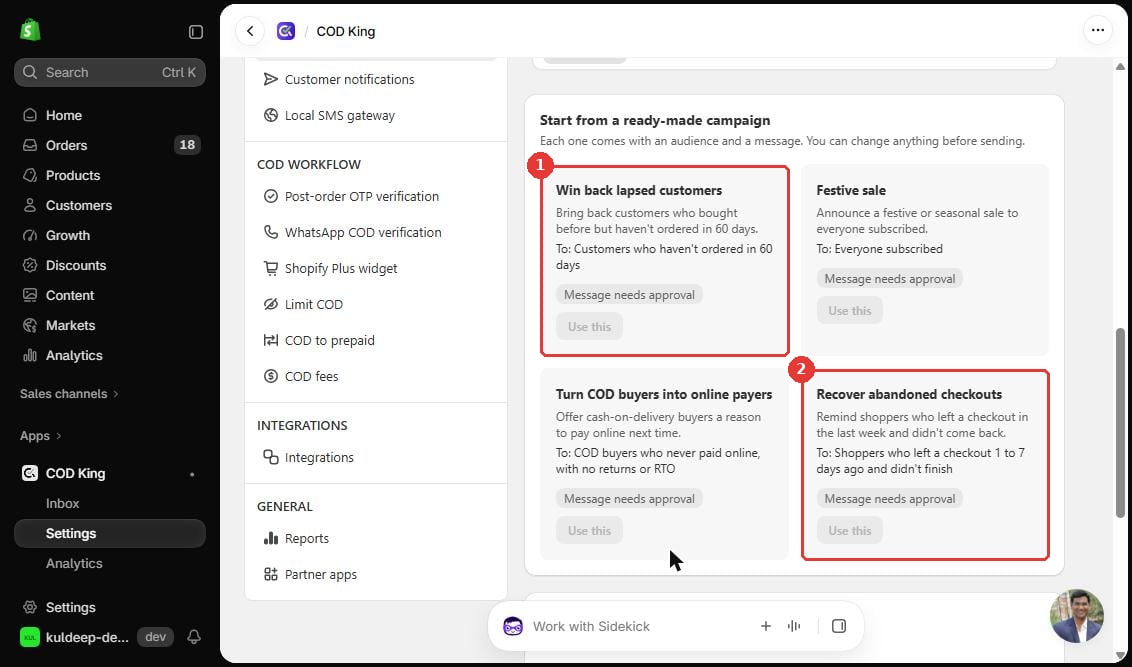
The campaigns page describes the flow as: pick an audience, choose an approved template, and send now or schedule it. Every message is tracked from sent to read and reply.
Create campaign is disabled until setup is complete.
Setup needed shows that the number and message are not ready yet.
The campaigns page has two tabs, Campaigns and Audiences. Use the Open audiences button to manage audiences.
Needs verification: The filters for building a custom audience, the list of segments, and the eligibility rules were not visible in the dev store. Only the four audiences above are confirmed.
The campaigns page says you can send now or schedule a campaign. The scheduling fields, start time, delays, recurring options, and actions such as pause or stop were not verified because no number was connected.
Needs verification: Scheduling details, recurring options, pausing and stopping, and performance metrics. Do not publish these steps until they are checked in the app.
Campaign messages are charged at the WhatsApp marketing rate. On the dev store this is $0.0116 per message. See Introduction and How It Works.
Do not assume features exist because other WhatsApp marketing tools offer them. Check the app first.
{"docsConfig":{"theme":"mint","$schema":"https://mintlify.com/docs.json","name":"COD King Documentation","description":"Official documentation for COD King — configure and manage Cash on Delivery workflows for your Shopify store.","colors":{"primary":"#196bf5","light":"#4C8DF7","dark":"#0B4FC2"},"logo":{"light":"https://mintcdn.com/codking/bTZqp1QmGOkbuICj/images/withbglogo2.png?fit=max\u0026auto=format\u0026n=bTZqp1QmGOkbuICj\u0026q=85\u0026s=2342e0e9511f98c0a18f23ce47244c2f","dark":"https://mintcdn.com/codking/bTZqp1QmGOkbuICj/images/withbglogo2.png?fit=max\u0026auto=format\u0026n=bTZqp1QmGOkbuICj\u0026q=85\u0026s=2342e0e9511f98c0a18f23ce47244c2f","href":"https://codking.tech/"},"favicon":"https://mintcdn.com/codking/o9R0nutNDYrv62Dh/logo/CK%20logo%20icon-1200px.png?fit=max\u0026auto=format\u0026n=o9R0nutNDYrv62Dh\u0026q=85\u0026s=3aa5b1ed579fc29e186304324b2e9b50","appearance":{"default":"light","strict":true},"background":{"decoration":"gradient"},"navbar":{"links":[{"href":"mailto:support@notifiktech.com","label":"Support"}]},"search":{"prompt":"Search Codking docs..."},"seo":{"metatags":{"og:title":"COD King Documentation","og:description":"Official guides and documentation for COD King on Shopify.","og:site_name":"Codking Docs"}},"contextual":{"options":["copy","view","chatgpt","claude","assistant"],"display":"header"},"styling":{"latex":false},"navigation":{"pages":[]}},"deployment":{"deploymentMetadataValue":{"subdomain":"codking","hasAudioNarration":false,"actualSubdomain":"codking","customDomains":["docs.codking.tech"],"gitSource":{"type":"github","owner":"rabbitpay2026","repo":"codking-docs","deployBranch":"main","contentDirectory":"","isPrivate":false,"mountPath":"","label":""},"feedback":{"agentFeedback":false,"edits":false,"issues":false,"thumbs":false},"entitlements":{},"buildId":"6ae1fe29f9cefd8f8d7a399d","clientVersion":"0.0.4087","searchFilterCounts":[{"language":"default","tag":"Documentation","count":58},{"language":"default","tag":"Core Features","count":55},{"language":"default","tag":"Local SMS Gateway","count":13},{"language":"default","tag":"COD Form","count":8},{"language":"default","tag":"Partial Payment","count":8},{"language":"default","tag":"OTP Verification","count":7},{"language":"default","tag":"Branded WhatsApp","count":6},{"language":"default","tag":"Business WhatsApp","count":5},{"language":"default","tag":"WhatsApp Inbox \u0026 AI Agent","count":4},{"language":"default","tag":"Help \u0026 Support","count":2}]},"assistantConfig":{"enableAskAiButton":false,"enableStarterQuestions":false,"enableContextualStarterQuestions":false,"enableAskAiSearchBar":true},"basePath":"","hasChatPermissions":false,"hasWebMcpPermissions":false,"toggles":[{"name":"kill-isr","enabled":true,"variant":{"name":"disabled","enabled":false,"feature_enabled":true},"impressionData":false},{"name":"agent-mintlify-slack","enabled":true,"variant":{"name":"disabled","enabled":false,"feature_enabled":true},"impressionData":false},{"name":"agent-integrations-settings","enabled":true,"variant":{"name":"disabled","enabled":false,"feature_enabled":true},"impressionData":false},{"name":"rbac-expansion","enabled":true,"variant":{"name":"disabled","enabled":false,"feature_enabled":true},"impressionData":false},{"name":"automations-pr-grouping","enabled":true,"variant":{"name":"disabled","enabled":false,"feature_enabled":true},"impressionData":false},{"name":"custom-prefix","enabled":true,"variant":{"name":"disabled","enabled":false,"feature_enabled":true},"impressionData":false},{"name":"analytics-v7","enabled":true,"variant":{"name":"disabled","enabled":false,"feature_enabled":true},"impressionData":false},{"name":"user-flows-analytics","enabled":true,"variant":{"name":"disabled","enabled":false,"feature_enabled":true},"impressionData":false},{"name":"no-publish-flow","enabled":true,"variant":{"name":"disabled","enabled":false,"feature_enabled":true},"impressionData":false},{"name":"workos-onboarding","enabled":true,"variant":{"name":"disabled","enabled":false,"feature_enabled":true},"impressionData":false},{"name":"llms-txt-v2","enabled":true,"variant":{"name":"disabled","enabled":false,"feature_enabled":true},"impressionData":false},{"name":"snapshot-serving-live","enabled":true,"variant":{"name":"disabled","enabled":false,"feature_enabled":true},"impressionData":false},{"name":"stripTemperatureMiddleware","enabled":true,"variant":{"name":"disabled","enabled":false,"feature_enabled":true},"impressionData":false},{"name":"support-platform-pylon-zendesk","enabled":true,"variant":{"name":"disabled","enabled":false,"feature_enabled":true},"impressionData":false},{"name":"snapshot-serving","enabled":true,"variant":{"name":"disabled","enabled":false,"feature_enabled":true},"impressionData":false},{"name":"instant-rollback","enabled":true,"variant":{"name":"disabled","enabled":false,"feature_enabled":true},"impressionData":false},{"name":"granular-notifications-server","enabled":true,"variant":{"name":"disabled","enabled":false,"feature_enabled":true},"impressionData":false},{"name":"granular-notifications","enabled":true,"variant":{"name":"disabled","enabled":false,"feature_enabled":true},"impressionData":false},{"name":"automations-fable","enabled":true,"variant":{"name":"disabled","enabled":false,"feature_enabled":true},"impressionData":false},{"name":"fixed-ai-action-pricing","enabled":true,"variant":{"name":"disabled","enabled":false,"feature_enabled":true},"impressionData":false},{"name":"automation-resolve-merge-conflict","enabled":true,"variant":{"name":"disabled","enabled":false,"feature_enabled":true},"impressionData":false},{"name":"scoped-publishing","enabled":true,"variant":{"name":"disabled","enabled":false,"feature_enabled":true},"impressionData":false},{"name":"mintql","enabled":true,"variant":{"name":"disabled","enabled":false,"feature_enabled":true},"impressionData":false},{"name":"page-level-analytics","enabled":true,"variant":{"name":"disabled","enabled":false,"feature_enabled":true},"impressionData":false},{"name":"editor-version-history-v2","enabled":true,"variant":{"name":"disabled","enabled":false,"feature_enabled":true},"impressionData":false},{"name":"billing-page-v2","enabled":true,"variant":{"name":"disabled","enabled":false,"feature_enabled":true},"impressionData":false},{"name":"full-page-search","enabled":true,"variant":{"name":"disabled","enabled":false,"feature_enabled":true},"impressionData":false},{"name":"workspace-projects","enabled":true,"variant":{"name":"disabled","enabled":false,"feature_enabled":true},"impressionData":false},{"name":"assistant-v5","enabled":true,"variant":{"name":"disabled","enabled":false,"feature_enabled":true},"impressionData":false},{"name":"fork-pr-previews","enabled":true,"variant":{"name":"disabled","enabled":false,"feature_enabled":true},"impressionData":false},{"name":"revalidation-jwt","enabled":true,"variant":{"name":"disabled","enabled":false,"feature_enabled":true},"impressionData":false},{"name":"workos-sso-scim","enabled":true,"variant":{"name":"disabled","enabled":false,"feature_enabled":true},"impressionData":false},{"name":"hobby-abuse-scan","enabled":true,"variant":{"name":"disabled","enabled":false,"feature_enabled":true},"impressionData":false},{"name":"dashboard-inbox","enabled":true,"variant":{"name":"disabled","enabled":false,"feature_enabled":true},"impressionData":false},{"name":"workos-signup","enabled":true,"variant":{"name":"disabled","enabled":false,"feature_enabled":true},"impressionData":false},{"name":"turbopuffer-dual-write","enabled":true,"variant":{"name":"disabled","enabled":false,"feature_enabled":true},"impressionData":false},{"name":"workos-enabled","enabled":true,"variant":{"name":"disabled","enabled":false,"feature_enabled":true},"impressionData":false},{"name":"approve-review-flow","enabled":true,"variant":{"name":"disabled","enabled":false,"feature_enabled":true},"impressionData":false},{"name":"editor-metadata","enabled":true,"variant":{"name":"disabled","enabled":false,"feature_enabled":true},"impressionData":false},{"name":"sso-setup-deadline-banner","enabled":true,"variant":{"name":"disabled","enabled":false,"feature_enabled":true},"impressionData":false},{"name":"turbopuffer-serve","enabled":true,"variant":{"name":"disabled","enabled":false,"feature_enabled":true},"impressionData":false},{"name":"live-agents","enabled":true,"variant":{"name":"disabled","enabled":false,"feature_enabled":true},"impressionData":false},{"name":"comment-mode","enabled":true,"variant":{"name":"disabled","enabled":false,"feature_enabled":true},"impressionData":false}],"googleFontsInlined":false},"customCss":[],"page":{"pagePath":"branded-whatsapp/campaign-management","slug":"/branded-whatsapp/campaign-management","pageMetadata":{"title":"Branded WhatsApp – Campaign Management with COD King","sidebarTitle":"Campaign Management","description":"Set up, send and monitor WhatsApp campaigns from COD King, with the audiences and campaigns available today.","icon":"bullhorn","href":"/documentation/branded-whatsapp/campaign-management"},"description":{"compiledSource":"\"use strict\";\nconst {jsx: _jsx} = arguments[0];\nconst {useMDXComponents: _provideComponents} = arguments[0];\nfunction _createMdxContent(props) {\n const _components = {\n p: \"p\",\n ..._provideComponents(),\n ...props.components\n };\n return _jsx(_components.p, {\n children: \"Set up, send and monitor WhatsApp campaigns from COD King, with the audiences and campaigns available today.\"\n });\n}\nfunction MDXContent(props = {}) {\n const {wrapper: MDXLayout} = {\n ..._provideComponents(),\n ...props.components\n };\n return MDXLayout ? _jsx(MDXLayout, {\n ...props,\n children: _jsx(_createMdxContent, {\n ...props\n })\n }) : _createMdxContent(props);\n}\nreturn {\n default: MDXContent\n};\n","frontmatter":{},"scope":{}},"pageType":"default","mdx":{"mdxSource":{"compiledSource":"\"use strict\";const{Fragment:_Fragment,jsx:_jsx,jsxs:_jsxs}=arguments[0];const{useMDXComponents:_provideComponents}=arguments[0];function _createMdxContent(props){const _components={a:`a`,li:`li`,ol:`ol`,p:`p`,strong:`strong`,tbody:`tbody`,td:`td`,th:`th`,thead:`thead`,tr:`tr`,ul:`ul`,..._provideComponents(),...props.components},{Frame,Heading,OptimizedImage,Table,Warning}=_components;if(!Frame)_missingMdxReference(`Frame`,true);if(!Heading)_missingMdxReference(`Heading`,true);if(!OptimizedImage)_missingMdxReference(`OptimizedImage`,true);if(!Table)_missingMdxReference(`Table`,true);if(!Warning)_missingMdxReference(`Warning`,true);return _jsxs(_Fragment,{children:[_jsx(Heading,{level:`1`,id:`campaign-management-with-cod-king`,children:`Campaign Management with COD King`}),`\n`,_jsx(_components.p,{children:`WhatsApp campaigns let you send an offer or announcement to a group of customers. Each campaign has an audience, an approved message, and a send time.`}),`\n`,_jsx(Heading,{level:`2`,id:`how-campaigns-work`,children:`How campaigns work`}),`\n`,_jsx(_components.p,{children:`The campaigns page describes the flow as: pick an audience, choose an approved template, and send now or schedule it. Every message is tracked from sent to read and reply.`}),`\n`,_jsx(Frame,{children:_jsx(OptimizedImage,{src:`https://mintcdn.com/codking/ViutZIoCweIz8q5q/images/bw-03-campaigns-setup-needed.png?fit=max\u0026auto=format\u0026n=ViutZIoCweIz8q5q\u0026q=85\u0026s=e9b5ad273bb7bc14fb41783e17dce89b`,alt:`WhatsApp campaigns page with Create campaign disabled and Setup needed status`,\"data-og-width\":`1132`,width:`1132`,\"data-og-height\":`667`,height:`667`,\"data-path\":`images/bw-03-campaigns-setup-needed.png`,\"data-optimize\":`true`,\"data-opv\":`3`,srcset:`https://mintcdn.com/codking/ViutZIoCweIz8q5q/images/bw-03-campaigns-setup-needed.png?w=280\u0026fit=max\u0026auto=format\u0026n=ViutZIoCweIz8q5q\u0026q=85\u0026s=50ecc9a80aa016be1a0fc85630c81778 280w, https://mintcdn.com/codking/ViutZIoCweIz8q5q/images/bw-03-campaigns-setup-needed.png?w=560\u0026fit=max\u0026auto=format\u0026n=ViutZIoCweIz8q5q\u0026q=85\u0026s=daf2b38389cd6e3f2df0094198a32a2c 560w, https://mintcdn.com/codking/ViutZIoCweIz8q5q/images/bw-03-campaigns-setup-needed.png?w=840\u0026fit=max\u0026auto=format\u0026n=ViutZIoCweIz8q5q\u0026q=85\u0026s=5bc1273dac23884b6bac5dd68a4123fc 840w, https://mintcdn.com/codking/ViutZIoCweIz8q5q/images/bw-03-campaigns-setup-needed.png?w=1100\u0026fit=max\u0026auto=format\u0026n=ViutZIoCweIz8q5q\u0026q=85\u0026s=dae82ca7fae36d89c79963c82482b06a 1100w, https://mintcdn.com/codking/ViutZIoCweIz8q5q/images/bw-03-campaigns-setup-needed.png?w=1650\u0026fit=max\u0026auto=format\u0026n=ViutZIoCweIz8q5q\u0026q=85\u0026s=b19aaa6104db274729da6b6f29b51e35 1650w, https://mintcdn.com/codking/ViutZIoCweIz8q5q/images/bw-03-campaigns-setup-needed.png?w=2500\u0026fit=max\u0026auto=format\u0026n=ViutZIoCweIz8q5q\u0026q=85\u0026s=b2c5278546701c4d7b15345ec8519c5b 2500w`})}),`\n`,_jsxs(_components.ol,{children:[`\n`,_jsxs(_components.li,{children:[_jsx(_components.strong,{children:`Create campaign`}),` is disabled until setup is complete.`]}),`\n`,_jsxs(_components.li,{children:[_jsx(_components.strong,{children:`Setup needed`}),` shows that the number and message are not ready yet.`]}),`\n`]}),`\n`,_jsx(Heading,{level:`2`,id:`prerequisites-set-up-campaigns`,children:`Prerequisites: set up campaigns`}),`\n`,_jsxs(_components.p,{children:[`The `,_jsx(_components.strong,{children:`Set up WhatsApp campaigns`}),` checklist has three steps:`]}),`\n`,_jsxs(_components.ol,{children:[`\n`,_jsxs(_components.li,{children:[_jsx(_components.strong,{children:`Connect your WhatsApp Business number.`}),` Messages are sent from your own number. Click `,_jsx(_components.strong,{children:`Connect number`}),`.`]}),`\n`,_jsxs(_components.li,{children:[_jsx(_components.strong,{children:`Get a message approved.`}),` WhatsApp only allows pre-approved messages for campaigns. Click `,_jsx(_components.strong,{children:`Choose a message`}),` to start from a ready-made one.`]}),`\n`,_jsxs(_components.li,{children:[_jsx(_components.strong,{children:`Bring in your customers.`}),` Click `,_jsx(_components.strong,{children:`Import from store`}),` to copy your Shopify customers and abandoned checkouts, or `,_jsx(_components.strong,{children:`Upload a list`}),`.`]}),`\n`]}),`\n`,_jsx(Heading,{level:`2`,id:`ready-made-campaigns`,children:`Ready-made campaigns`}),`\n`,_jsx(_components.p,{children:`Each ready-made campaign comes with an audience and a message. You can change anything before you send.`}),`\n`,_jsx(Frame,{children:_jsx(OptimizedImage,{src:`https://mintcdn.com/codking/ViutZIoCweIz8q5q/images/bw-05-ready-made-campaigns.png?fit=max\u0026auto=format\u0026n=ViutZIoCweIz8q5q\u0026q=85\u0026s=30ae33dc35f0ff009f5a2fba9d00420b`,alt:`Ready-made WhatsApp campaigns with audiences and approval status`,\"data-og-width\":`1132`,width:`1132`,\"data-og-height\":`667`,height:`667`,\"data-path\":`images/bw-05-ready-made-campaigns.png`,\"data-optimize\":`true`,\"data-opv\":`3`,srcset:`https://mintcdn.com/codking/ViutZIoCweIz8q5q/images/bw-05-ready-made-campaigns.png?w=280\u0026fit=max\u0026auto=format\u0026n=ViutZIoCweIz8q5q\u0026q=85\u0026s=ef96c2fa413d058b2661740c167bfd99 280w, https://mintcdn.com/codking/ViutZIoCweIz8q5q/images/bw-05-ready-made-campaigns.png?w=560\u0026fit=max\u0026auto=format\u0026n=ViutZIoCweIz8q5q\u0026q=85\u0026s=f2b5825646f7f4087c782073ac5d32b2 560w, https://mintcdn.com/codking/ViutZIoCweIz8q5q/images/bw-05-ready-made-campaigns.png?w=840\u0026fit=max\u0026auto=format\u0026n=ViutZIoCweIz8q5q\u0026q=85\u0026s=825fea5f31c4408566bb06fd7c38e36e 840w, https://mintcdn.com/codking/ViutZIoCweIz8q5q/images/bw-05-ready-made-campaigns.png?w=1100\u0026fit=max\u0026auto=format\u0026n=ViutZIoCweIz8q5q\u0026q=85\u0026s=c1ef94aebd0a9a80eac0f6004ee4b069 1100w, https://mintcdn.com/codking/ViutZIoCweIz8q5q/images/bw-05-ready-made-campaigns.png?w=1650\u0026fit=max\u0026auto=format\u0026n=ViutZIoCweIz8q5q\u0026q=85\u0026s=f44be07ad6aaf907cbdfbba057f02626 1650w, https://mintcdn.com/codking/ViutZIoCweIz8q5q/images/bw-05-ready-made-campaigns.png?w=2500\u0026fit=max\u0026auto=format\u0026n=ViutZIoCweIz8q5q\u0026q=85\u0026s=7ce0747e0bf5f1fffe2d4925188ee3f6 2500w`})}),`\n`,_jsxs(Table,{children:[_jsx(_components.thead,{children:_jsxs(_components.tr,{children:[_jsx(_components.th,{children:`Campaign`}),_jsx(_components.th,{children:`Audience`}),_jsx(_components.th,{children:`Status on the dev store`})]})}),_jsxs(_components.tbody,{children:[_jsxs(_components.tr,{children:[_jsx(_components.td,{children:`Win back lapsed customers`}),_jsx(_components.td,{children:`Customers who have not ordered in 60 days`}),_jsx(_components.td,{children:`Message needs approval`})]}),_jsxs(_components.tr,{children:[_jsx(_components.td,{children:`Festive sale`}),_jsx(_components.td,{children:`Everyone subscribed`}),_jsx(_components.td,{children:`Message needs approval`})]}),_jsxs(_components.tr,{children:[_jsx(_components.td,{children:`Turn COD buyers into online payers`}),_jsx(_components.td,{children:`COD buyers who never paid online, with no returns or RTO`}),_jsx(_components.td,{children:`Message needs approval`})]}),_jsxs(_components.tr,{children:[_jsx(_components.td,{children:`Recover abandoned checkouts`}),_jsx(_components.td,{children:`Shoppers who left a checkout 1 to 7 days ago and didn’t finish`}),_jsx(_components.td,{children:`Message needs approval`})]})]})]}),`\n`,_jsx(Heading,{level:`2`,id:`audiences`,children:`Audiences`}),`\n`,_jsxs(_components.p,{children:[`The campaigns page has two tabs, `,_jsx(_components.strong,{children:`Campaigns`}),` and `,_jsx(_components.strong,{children:`Audiences`}),`. Use the `,_jsx(_components.strong,{children:`Open audiences`}),` button to manage audiences.`]}),`\n`,_jsx(Warning,{children:_jsxs(_components.p,{children:[_jsx(_components.strong,{children:`Needs verification:`}),` The filters for building a custom audience, the list of segments, and the eligibility rules were not visible in the dev store. Only the four audiences above are confirmed.`]})}),`\n`,_jsx(Heading,{level:`2`,id:`scheduling-and-campaign-actions`,children:`Scheduling and campaign actions`}),`\n`,_jsxs(_components.p,{children:[`The campaigns page says you can `,_jsx(_components.strong,{children:`send now or schedule`}),` a campaign. The scheduling fields, start time, delays, recurring options, and actions such as pause or stop were not verified because no number was connected.`]}),`\n`,_jsx(Warning,{children:_jsxs(_components.p,{children:[_jsx(_components.strong,{children:`Needs verification:`}),` Scheduling details, recurring options, pausing and stopping, and performance metrics. Do not publish these steps until they are checked in the app.`]})}),`\n`,_jsx(Heading,{level:`2`,id:`practical-example-a-win-back-campaign`,children:`Practical example: a win-back campaign`}),`\n`,_jsx(_components.p,{children:`A store wants to bring back customers who have not ordered in 60 days.`}),`\n`,_jsxs(_components.ol,{children:[`\n`,_jsxs(_components.li,{children:[`Open `,_jsx(_components.strong,{children:`Settings → WhatsApp campaigns`}),`, and finish the three setup steps.`]}),`\n`,_jsxs(_components.li,{children:[`Under `,_jsx(_components.strong,{children:`Start from a ready-made campaign`}),`, open `,_jsx(_components.strong,{children:`Win back lapsed customers`}),`.`]}),`\n`,_jsxs(_components.li,{children:[`Wait until the message is approved. The `,_jsx(_components.strong,{children:`Use this`}),` button is enabled after approval.`]}),`\n`,_jsx(_components.li,{children:`Review the audience (customers who have not ordered in 60 days) and the message, then send or schedule.`}),`\n`,_jsxs(_components.li,{children:[`Check the results in the activity logs (see `,_jsx(_components.a,{href:`/documentation/branded-whatsapp/activity-logs-and-replies`,children:`Checking Activity Logs and Understanding Replies`}),`).`]}),`\n`]}),`\n`,_jsx(Heading,{level:`2`,id:`verification`,children:`Verification`}),`\n`,_jsxs(_components.ul,{children:[`\n`,_jsx(_components.li,{children:`Confirm the campaign audience matches the ready-made description before sending.`}),`\n`,_jsx(_components.li,{children:`Send a test to your own number first, if your setup allows it.`}),`\n`]}),`\n`,_jsx(Heading,{level:`2`,id:`troubleshooting`,children:`Troubleshooting`}),`\n`,_jsxs(_components.ul,{children:[`\n`,_jsxs(_components.li,{children:[_jsx(_components.strong,{children:`Create campaign is disabled.`}),` Finish the setup checklist. The number and an approved message are required.`]}),`\n`,_jsxs(_components.li,{children:[_jsx(_components.strong,{children:`Use this is disabled.`}),` The message is waiting for approval.`]}),`\n`,_jsxs(_components.li,{children:[_jsx(_components.strong,{children:`No customers are in the audience.`}),` Import customers from your store or upload a list.`]}),`\n`]}),`\n`,_jsx(Heading,{level:`2`,id:`important-notes-and-limitations`,children:`Important notes and limitations`}),`\n`,_jsxs(_components.ul,{children:[`\n`,_jsx(_components.li,{children:`Campaigns can only use approved messages.`}),`\n`,_jsxs(_components.li,{children:[`Campaign messages are charged at the WhatsApp marketing rate. On the dev store this is $0.0116 per message. See `,_jsx(_components.a,{href:`/documentation/branded-whatsapp/introduction`,children:`Introduction and How It Works`}),`.`]}),`\n`,_jsx(_components.li,{children:`Do not assume features exist because other WhatsApp marketing tools offer them. Check the app first.`}),`\n`]})]})}function MDXContent(props={}){const{wrapper:MDXLayout}={..._provideComponents(),...props.components};return MDXLayout?_jsx(MDXLayout,{...props,children:_jsx(_createMdxContent,{...props})}):_createMdxContent(props)}return{default:MDXContent};function _missingMdxReference(id,component){throw new Error(`Expected `+(component?`component`:`object`)+\" `\"+id+\"` to be defined: you likely forgot to import, pass, or provide it.\")}","frontmatter":{},"scope":{"config":{},"pageMetadata":{"title":"Branded WhatsApp – Campaign Management with COD King","sidebarTitle":"Campaign Management","description":"Set up, send and monitor WhatsApp campaigns from COD King, with the audiences and campaigns available today.","icon":"bullhorn","href":"/documentation/branded-whatsapp/campaign-management"}}},"mdxSourceWithNoJs":null},"mdxExtracts":{"tableOfContents":[{"title":"Campaign Management with COD King","slug":"campaign-management-with-cod-king","depth":1,"children":[]},{"title":"How campaigns work","slug":"how-campaigns-work","depth":2,"children":[]},{"title":"Prerequisites: set up campaigns","slug":"prerequisites-set-up-campaigns","depth":2,"children":[]},{"title":"Ready-made campaigns","slug":"ready-made-campaigns","depth":2,"children":[]},{"title":"Audiences","slug":"audiences","depth":2,"children":[]},{"title":"Scheduling and campaign actions","slug":"scheduling-and-campaign-actions","depth":2,"children":[]},{"title":"Practical example: a win-back campaign","slug":"practical-example-a-win-back-campaign","depth":2,"children":[]},{"title":"Verification","slug":"verification","depth":2,"children":[]},{"title":"Troubleshooting","slug":"troubleshooting","depth":2,"children":[]},{"title":"Important notes and limitations","slug":"important-notes-and-limitations","depth":2,"children":[]}],"codeExamples":{}},"jsLinks":[],"subdomain":"codking","siteName":"COD King Documentation","title":"COD King Documentation","navMaps":{"firstHrefInVersion":{},"firstHrefInLanguage":{}},"lastModified":"2026-10-22T14:09:57.612Z","originalFileLocation":"branded-whatsapp/campaign-management.mdx"},"headHtml":"\u003cscript data-mint-head>(function(){var d=document.documentElement,p=\"light\";if(!p){try{p=localStorage.getItem(\"isDarkMode\")}catch(e){}if(p==='true')p='dark';else if(p==='false')p='light';if(p!=='light'\u0026\u0026p!=='dark'\u0026\u0026p!=='system')p=\"light\"}var r=p==='system'?(matchMedia(\"(prefers-color-scheme: dark)\").matches?'dark':'light'):p;d.classList.remove(r==='dark'?'light':'dark');d.classList.add(r);d.setAttribute(\"data-theme-preference\",p)})();\u003c/script>\u003cmeta data-mint-head name=\"description\" content=\"Set up, send and monitor WhatsApp campaigns from COD King, with the audiences and campaigns available today.\">\u003cmeta data-mint-head name=\"application-name\" content=\"COD King Documentation\">\u003cmeta data-mint-head name=\"generator\" content=\"Mintlify\">\u003clink data-mint-head rel=\"icon\" type=\"image/png\" sizes=\"192x192\" href=\"/mintlify-assets/_mintlify/favicons/codking/DotHRvwAU3jYMS2L/_generated/favicon/android-chrome-192x192.png\" media=\"(prefers-color-scheme: light)\">\u003clink data-mint-head rel=\"apple-touch-icon\" type=\"image/png\" sizes=\"180x180\" href=\"/mintlify-assets/_mintlify/favicons/codking/DotHRvwAU3jYMS2L/_generated/favicon/apple-touch-icon.png\">\u003clink data-mint-head rel=\"icon\" type=\"image/png\" sizes=\"16x16\" href=\"/mintlify-assets/_mintlify/favicons/codking/DotHRvwAU3jYMS2L/_generated/favicon/favicon-16x16.png\" media=\"(prefers-color-scheme: light)\">\u003clink data-mint-head rel=\"icon\" type=\"image/png\" sizes=\"32x32\" href=\"/mintlify-assets/_mintlify/favicons/codking/DotHRvwAU3jYMS2L/_generated/favicon/favicon-32x32.png\" media=\"(prefers-color-scheme: light)\">\u003clink data-mint-head rel=\"shortcut icon\" type=\"image/x-icon\" href=\"/mintlify-assets/_mintlify/favicons/codking/DotHRvwAU3jYMS2L/_generated/favicon/favicon.ico\" media=\"(prefers-color-scheme: light)\">\u003clink data-mint-head rel=\"icon\" type=\"image/png\" sizes=\"192x192\" href=\"/mintlify-assets/_mintlify/favicons/codking/DotHRvwAU3jYMS2L/_generated/favicon-dark/android-chrome-192x192.png\" media=\"(prefers-color-scheme: dark)\">\u003clink data-mint-head rel=\"icon\" type=\"image/png\" sizes=\"16x16\" href=\"/mintlify-assets/_mintlify/favicons/codking/DotHRvwAU3jYMS2L/_generated/favicon-dark/favicon-16x16.png\" media=\"(prefers-color-scheme: dark)\">\u003clink data-mint-head rel=\"icon\" type=\"image/png\" sizes=\"32x32\" href=\"/mintlify-assets/_mintlify/favicons/codking/DotHRvwAU3jYMS2L/_generated/favicon-dark/favicon-32x32.png\" media=\"(prefers-color-scheme: dark)\">\u003clink data-mint-head rel=\"shortcut icon\" type=\"image/x-icon\" href=\"/mintlify-assets/_mintlify/favicons/codking/DotHRvwAU3jYMS2L/_generated/favicon-dark/favicon.ico\" media=\"(prefers-color-scheme: dark)\">\u003cmeta data-mint-head property=\"og:title\" content=\"COD King Documentation\">\u003cmeta data-mint-head property=\"og:description\" content=\"Official guides and documentation for COD King on Shopify.\">\u003cmeta data-mint-head property=\"og:site_name\" content=\"Codking Docs\">\u003cmeta data-mint-head property=\"og:url\" content=\"https://codking.tech/documentation/branded-whatsapp/campaign-management\">\u003cmeta data-mint-head property=\"og:type\" content=\"website\">\u003cmeta data-mint-head property=\"og:image\" content=\"https://codking.mintlify.site/_mintlify/api/og/v2?division=Branded+WhatsApp\u0026amp;title=Branded+WhatsApp+%E2%80%93+Campaign+Management+with+COD+King\u0026amp;description=Set+up%2C+send+and+monitor+WhatsApp+campaigns+from+COD+King%2C+with+the+audiences+and+campaigns+available+today.\u0026amp;theme=1c82a0961101ed6897134fee\u0026amp;signature=1042ac5f05783931fd601dfdf07f10305c0b235f487bf991203b2a032d42ac2d\">\u003cmeta data-mint-head property=\"og:image:width\" content=\"1200\">\u003cmeta data-mint-head property=\"og:image:height\" content=\"630\">\u003cmeta data-mint-head name=\"twitter:card\" content=\"summary_large_image\">\u003cmeta data-mint-head name=\"twitter:title\" content=\"COD King Documentation\">\u003cmeta data-mint-head name=\"twitter:description\" content=\"Official guides and documentation for COD King on Shopify.\">\u003cmeta data-mint-head name=\"twitter:image\" content=\"https://codking.mintlify.site/_mintlify/api/og/v2?division=Branded+WhatsApp\u0026amp;title=Branded+WhatsApp+%E2%80%93+Campaign+Management+with+COD+King\u0026amp;description=Set+up%2C+send+and+monitor+WhatsApp+campaigns+from+COD+King%2C+with+the+audiences+and+campaigns+available+today.\u0026amp;theme=1c82a0961101ed6897134fee\u0026amp;signature=1042ac5f05783931fd601dfdf07f10305c0b235f487bf991203b2a032d42ac2d\">\u003cmeta data-mint-head name=\"twitter:image:width\" content=\"1200\">\u003cmeta data-mint-head name=\"twitter:image:height\" content=\"630\">\u003cmeta data-mint-head name=\"msapplication-config\" content=\"/mintlify-assets/_mintlify/favicons/codking/DotHRvwAU3jYMS2L/_generated/favicon/browserconfig.xml\">\u003cmeta data-mint-head name=\"apple-mobile-web-app-title\" content=\"COD King Documentation\">\u003cmeta data-mint-head name=\"msapplication-TileColor\" content=\"#196bf5\">\u003clink data-mint-head rel=\"canonical\" href=\"https://codking.tech/documentation/branded-whatsapp/campaign-management\">\u003clink data-mint-head rel=\"alternate\" type=\"application/xml\" href=\"/sitemap.xml\">\u003clink data-mint-head rel=\"alternate\" type=\"text/markdown\" href=\"/branded-whatsapp/campaign-management.md\">\u003cscript data-mint-head type=\"application/ld+json\">{\"@context\":\"https://schema.org\",\"@graph\":[{\"@type\":\"Organization\",\"@id\":\"https://codking.tech/documentation/#organization\",\"name\":\"COD King Documentation\",\"url\":\"https://codking.tech/documentation\",\"logo\":{\"@type\":\"ImageObject\",\"url\":\"https://mintcdn.com/codking/bTZqp1QmGOkbuICj/images/withbglogo2.png?fit=max\u0026auto=format\u0026n=bTZqp1QmGOkbuICj\u0026q=85\u0026s=2342e0e9511f98c0a18f23ce47244c2f\"}},{\"@type\":\"WebSite\",\"@id\":\"https://codking.tech/documentation#website\",\"name\":\"COD King Documentation\",\"url\":\"https://codking.tech/documentation\",\"publisher\":{\"@id\":\"https://codking.tech/documentation/#organization\"}},{\"@type\":\"WebPage\",\"@id\":\"https://codking.tech/documentation/branded-whatsapp/campaign-management#webpage\",\"url\":\"https://codking.tech/documentation/branded-whatsapp/campaign-management\",\"name\":\"Branded WhatsApp – Campaign Management with COD King\",\"description\":\"Set up, send and monitor WhatsApp campaigns from COD King, with the audiences and campaigns available today.\",\"dateModified\":\"2026-10-22T14:09:57.612Z\",\"isPartOf\":{\"@id\":\"https://codking.tech/documentation#website\"},\"breadcrumb\":{\"@id\":\"https://codking.tech/documentation/branded-whatsapp/campaign-management#breadcrumb\"}},{\"@type\":\"BreadcrumbList\",\"@id\":\"https://codking.tech/documentation/branded-whatsapp/campaign-management#breadcrumb\",\"itemListElement\":[{\"@type\":\"ListItem\",\"position\":1,\"name\":\"Core Features\",\"item\":\"https://codking.tech/documentation/otp-verification/overview\"},{\"@type\":\"ListItem\",\"position\":2,\"name\":\"Branded WhatsApp\",\"item\":\"https://codking.tech/documentation/branded-whatsapp/introduction\"},{\"@type\":\"ListItem\",\"position\":3,\"name\":\"Branded WhatsApp – Campaign Management with COD King\",\"item\":\"https://codking.tech/documentation/branded-whatsapp/campaign-management\"}]},{\"@type\":[\"Article\",\"TechArticle\"],\"@id\":\"https://codking.tech/documentation/branded-whatsapp/campaign-management#article\",\"headline\":\"Branded WhatsApp – Campaign Management with COD King\",\"name\":\"Branded WhatsApp – Campaign Management with COD King\",\"description\":\"Set up, send and monitor WhatsApp campaigns from COD King, with the audiences and campaigns available today.\",\"url\":\"https://codking.tech/documentation/branded-whatsapp/campaign-management\",\"mainEntityOfPage\":{\"@id\":\"https://codking.tech/documentation/branded-whatsapp/campaign-management#webpage\"},\"dateModified\":\"2026-10-22T14:09:57.612Z\",\"publisher\":{\"@id\":\"https://codking.tech/documentation/#organization\"},\"isPartOf\":{\"@id\":\"https://codking.tech/documentation#website\"}}]}\u003c/script>\u003cscript data-mint-head type=\"application/ld+json\">{\"@context\":\"https://schema.org\",\"@type\":\"WebSite\",\"name\":\"COD King Documentation\",\"creator\":{\"@type\":\"Organization\",\"name\":\"Mintlify\",\"url\":\"https://mintlify.com\"}}\u003c/script>","siteName":"COD King Documentation","nav":{"global":null,"tabs":[{"tab":"Documentation","groups":[{"group":"Getting Started","pages":[{"title":"Introduction","icon":{"name":"book-reader","style":"regular","library":"fontawesome"},"href":"/documentation"}]},{"group":"Integrations","icon":"puzzle-piece","hidden":true,"pages":[]},{"group":"Engagement","icon":"messages","hidden":true,"pages":[]},{"group":"Orders \u0026 Analytics","icon":"chart-line","hidden":true,"pages":[]},{"group":"Core Features","pages":[{"group":"OTP Verification","icon":"shield","pages":[{"title":"OTP Verification Overview","sidebarTitle":"OTP Verification","icon":"shield-check","href":"/documentation/otp-verification/overview"},{"title":"Pre-order OTP","sidebarTitle":"Pre-order OTP","icon":"mobile","href":"/documentation/otp-verification/pre-order-otp"},{"title":"Customize the OTP Popup","sidebarTitle":"Customize the popup","icon":"paintbrush","href":"/documentation/otp-verification/customize-otp-popup"},{"title":"Post-order OTP","sidebarTitle":"Post-order OTP","icon":"clock","href":"/documentation/otp-verification/post-order-otp"},{"title":"WhatsApp COD Verification","sidebarTitle":"WhatsApp COD verification","icon":"message","href":"/documentation/otp-verification/whatsapp-cod-verification"},{"title":"Shopify Plus Checkout OTP","sidebarTitle":"Shopify Plus checkout","icon":"cart-shopping","href":"/documentation/otp-verification/shopify-plus-checkout"},{"title":"OTP Analytics and Message Logs","sidebarTitle":"Analytics","icon":"chart-line","href":"/documentation/otp-verification/analytics"},{"title":"OTP Verification on Shopify","sidebarTitle":"OTP Verification","hidden":true,"href":"/documentation/setting-otp-verification-on-shopify"}]},{"group":"Partial Payment","icon":"split","pages":[{"title":"Partial Payment","sidebarTitle":"Overview","icon":"split","href":"/documentation/partial-payment/overview"},{"title":"Set Up and Activate Partial Payment","sidebarTitle":"Set up and activate","icon":"power","href":"/documentation/partial-payment/setup"},{"title":"Payment Rules and Rule Types","sidebarTitle":"Payment rules","icon":"list-checks","href":"/documentation/partial-payment/payment-rules"},{"title":"Who Sees a Payment Rule","sidebarTitle":"Who sees a rule","icon":"filter","href":"/documentation/partial-payment/rule-conditions"},{"title":"What a Payment Rule Shows and Charges","sidebarTitle":"Pricing and display","icon":"receipt","href":"/documentation/partial-payment/rule-pricing-and-display"},{"title":"Partial Payment Advanced Settings","sidebarTitle":"Advanced settings","icon":"sliders","href":"/documentation/partial-payment/advanced-settings"},{"title":"Customer Experience and Branding","sidebarTitle":"Customer experience","icon":"smartphone","href":"/documentation/partial-payment/customer-experience"},{"title":"Partial Payment Analytics","sidebarTitle":"Analytics","icon":"chart-line","href":"/documentation/partial-payment/analytics"}]},{"title":"COD fees/COD Charges","icon":"cash-app","href":"/documentation/setting-cod-fees-in-shopify"},{"title":"Customer Engagement","icon":"analytics","href":"/documentation/setting-sms-and-whatsapp-in-shopify"},{"title":"Prepaid Discount","sidebarTitle":"Prepaid Discount","icon":"badge-dollar","href":"/documentation/setting-prepaid-discount-in-shopify"},{"title":"COD to Prepaid","icon":"hand-holding-dollar","href":"/documentation/setting-cod-to-prepaid-conversion-in-shopify"},{"group":"Local SMS Gateway","pages":[{"title":"Connect Twilio account to Shopify","icon":"meta","href":"/documentation/local-sms-gateway/connect-twilio-account-to-shopify"},{"title":"Connect Wavecell (8x8 Connect) to COD King","icon":"message-sms","href":"/documentation/local-sms-gateway/connect-wavecell"},{"title":"Connect Movider (Philippines) to COD King","icon":"message-arrow-up-right","href":"/documentation/local-sms-gateway/connect-movider"},{"title":"Connect VeevoTech SMS to COD King","icon":"message-dots","href":"/documentation/local-sms-gateway/connect-veevotech"},{"title":"Connect eSMS SMS to COD King","icon":"message-check","href":"/documentation/local-sms-gateway/connect-esms"},{"title":"Connect BoomCast SMS to COD King","icon":"message-captions","href":"/documentation/local-sms-gateway/connect-boomcast"},{"title":"Connect ThaiBulkSMS SMS to COD King","icon":"message-code","href":"/documentation/local-sms-gateway/connect-thaibulksms"},{"title":"Connect iSmart SMS to COD King","icon":{"name":"message-quote","style":"regular","library":"fontawesome"},"href":"/documentation/local-sms-gateway/connect-ismart"},{"title":"Connect WinSMS SMS to COD King","icon":{"name":"message-lines","style":"regular","library":"fontawesome"},"href":"/documentation/local-sms-gateway/connect-winsms"},{"title":"Connect PalPigeon SMS to COD King","icon":"message-dots","href":"/documentation/local-sms-gateway/connect-palpigeon"},{"title":"Connect Branded SMS to COD King","icon":"message-lines","href":"/documentation/local-sms-gateway/connect-brandedsms"},{"title":"Connect BulkSmsBdService to COD King","icon":{"name":"message-code","style":"regular","library":"fontawesome"},"href":"/documentation/local-sms-gateway/connect-bulksms-bd-service"},{"title":"Connect ProWebSms to COD King","icon":{"name":"message-sms","style":"regular","library":"fontawesome"},"href":"/documentation/local-sms-gateway/connect-prowebsems"}]},{"group":"Branded WhatsApp","icon":{"style":"brands","name":"whatsapp","library":"fontawesome"},"pages":[{"title":"Branded WhatsApp – Introduction and How It Works","sidebarTitle":"Introduction","icon":"whatsapp","href":"/documentation/branded-whatsapp/introduction"},{"title":"Branded WhatsApp – Creating a New Template and Binding Events","sidebarTitle":"Templates and Events","icon":"list-check","href":"/documentation/branded-whatsapp/templates-and-events"},{"title":"Branded WhatsApp – Abandoned Cart","sidebarTitle":"Abandoned Cart","icon":"cart-shopping","href":"/documentation/branded-whatsapp/abandoned-cart"},{"title":"Branded WhatsApp – COD to Prepaid","sidebarTitle":"COD to Prepaid","icon":"arrow-right-arrow-left","href":"/documentation/branded-whatsapp/cod-to-prepaid"},{"title":"Branded WhatsApp – Checking Activity Logs and Understanding Replies","sidebarTitle":"Activity Logs and Replies","description":"Find where WhatsApp activity and customer replies appear in COD King.","icon":"clock-rotate-left","href":"/documentation/branded-whatsapp/activity-logs-and-replies"},{"title":"Branded WhatsApp – Campaign Management with COD King","sidebarTitle":"Campaign Management","icon":"bullhorn","href":"/documentation/branded-whatsapp/campaign-management"}]},{"group":"COD Form","icon":"rectangle-list","pages":[{"title":"COD Form","sidebarTitle":"Overview","description":"The COD Form is a pop-up order form that opens when a shopper taps your COD button, so they can place a Cash on Delivery order without ever leaving the page.","icon":"rectangle-list","href":"/documentation/cod-form/overview"},{"title":"COD Form Setup","sidebarTitle":"Setup","icon":"gear","href":"/documentation/cod-form/setup"},{"title":"COD Form Buttons","sidebarTitle":"Buttons","icon":"computer-mouse","href":"/documentation/cod-form/buttons"},{"title":"COD Form Designer","sidebarTitle":"Form designer","icon":"pen-ruler","href":"/documentation/cod-form/form-designer"},{"title":"COD Form Fraud Protection","sidebarTitle":"Fraud protection","icon":"shield-halved","href":"/documentation/cod-form/fraud-protection"},{"title":"COD Form Offers","sidebarTitle":"Offers","icon":"tags","href":"/documentation/cod-form/offers"},{"title":"COD Form Analytics","sidebarTitle":"Analytics","icon":"chart-line","href":"/documentation/cod-form/analytics"},{"title":"COD Form Advanced Settings","sidebarTitle":"Advanced settings","icon":"sliders","href":"/documentation/cod-form/advanced-settings"}]},{"group":"Business WhatsApp","icon":"message","pages":[{"title":"Business Brand WhatsApp","sidebarTitle":"Overview","icon":"message","href":"/documentation/business-whatsapp/overview"},{"title":"Meta and WhatsApp Approval Process","sidebarTitle":"Meta approval","icon":"shield-check","href":"/documentation/business-whatsapp/meta-approval"},{"title":"Connect and Test Your WhatsApp Number","sidebarTitle":"Connect your number","icon":"phone","href":"/documentation/business-whatsapp/connect-number"},{"title":"Set Up WhatsApp Notifications","sidebarTitle":"Notifications","icon":"bell","href":"/documentation/business-whatsapp/notifications"},{"title":"WhatsApp Templates","sidebarTitle":"Templates","icon":"file-lines","href":"/documentation/business-whatsapp/templates"}]},{"group":"WhatsApp Inbox \u0026 AI Agent","icon":"inbox","pages":[{"title":"WhatsApp Inbox","sidebarTitle":"Inbox","icon":"inbox","href":"/documentation/whatsapp-inbox/overview"},{"title":"WhatsApp Inbox Settings","sidebarTitle":"Inbox settings","icon":"gear","href":"/documentation/whatsapp-inbox/settings"},{"title":"Set Up the WhatsApp AI Agent","sidebarTitle":"AI agent setup","icon":"wand-magic-sparkles","href":"/documentation/whatsapp-inbox/ai-agent-setup"},{"title":"AI Agent Knowledge, Test, Credits and Activity","sidebarTitle":"Knowledge, test and credits","icon":"book-open","href":"/documentation/whatsapp-inbox/ai-agent-knowledge-credits"}]}]},{"group":"Help \u0026 Support","icon":"life-ring","pages":[{"title":"Troubleshooting","icon":{"name":"🏵️","style":"regular","library":"fontawesome"},"href":"/documentation/guides/troubleshooting"},{"title":"Frequently Asked Questions","icon":{"name":"question-circle","style":"regular","library":"fontawesome"},"href":"/documentation/support/faq"}]}]},{"tab":"API Reference","groups":[{"group":"API","icon":"code","pages":[]}]},{"tab":"Changelog","pages":[{"title":"Changelog","href":"/documentation/support/changelog"}]}]},"basePath":"","title":"COD King Documentation","buildId":"dpl_FWZhTb2vab28gFGFH4ojka6qEznQ","deploymentId":"dpl_FWZhTb2vab28gFGFH4ojka6qEznQ","dynamics":["07c022d89b","a74be98ba7"],"chunks":["Frame-CXMGc493.js","DynamicMarkdown-D-2HDKEp.js","zoom-image-lightbox-CE4cYsJE.js","lightbox-handle-r17bVUz3.js"]}