A notification connects one order event to one approved WhatsApp template. Only one template is active per event, and you can switch it at any time.

Open the notification list

1

Open Business Brand WhatsApp

Click Manage all next to Customer notifications.
2

Open the Notifications view

On the Templates page, click Notifications in the tab bar. If you do not see it, open More views and choose Notifications.
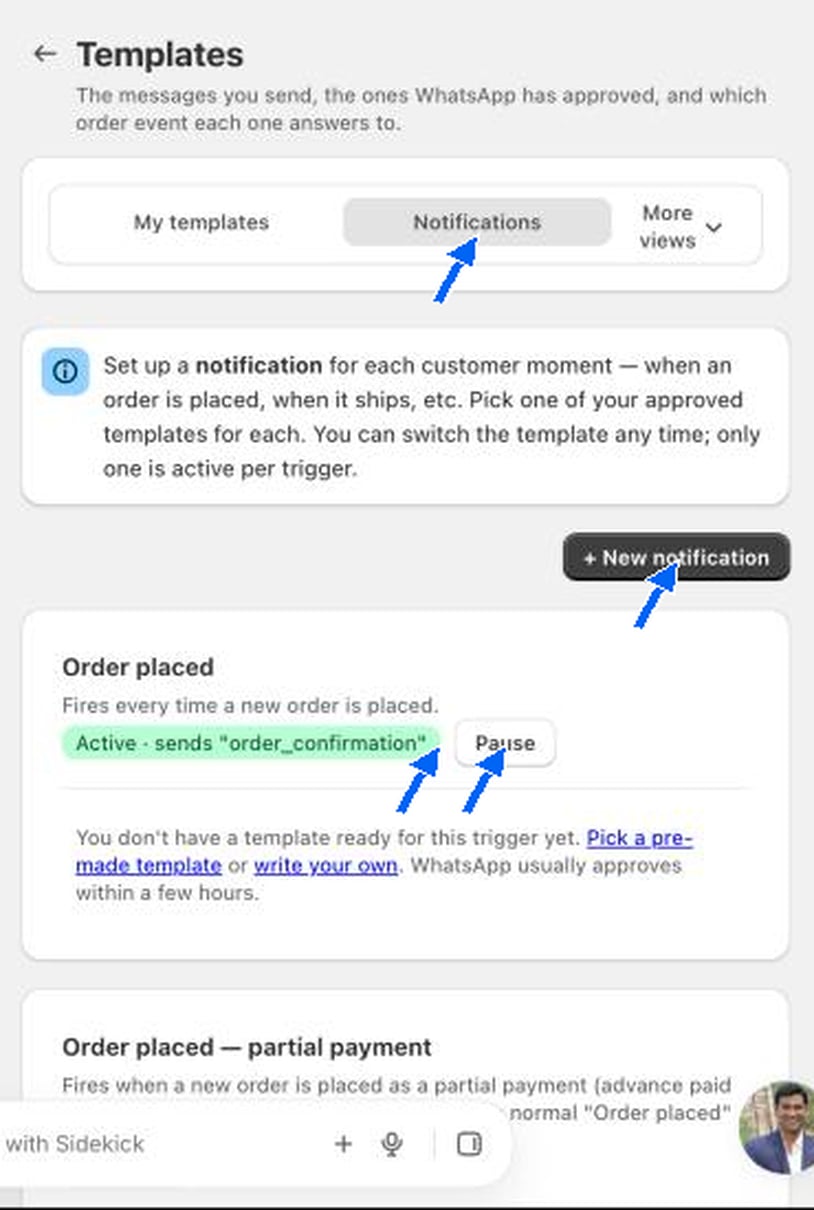
Notifications view with the New notification button and the Order placed card
The page explains it in one line: set up a notification for each customer moment, such as when an order is placed or when it ships, then pick one of your approved templates for each.

The notification card

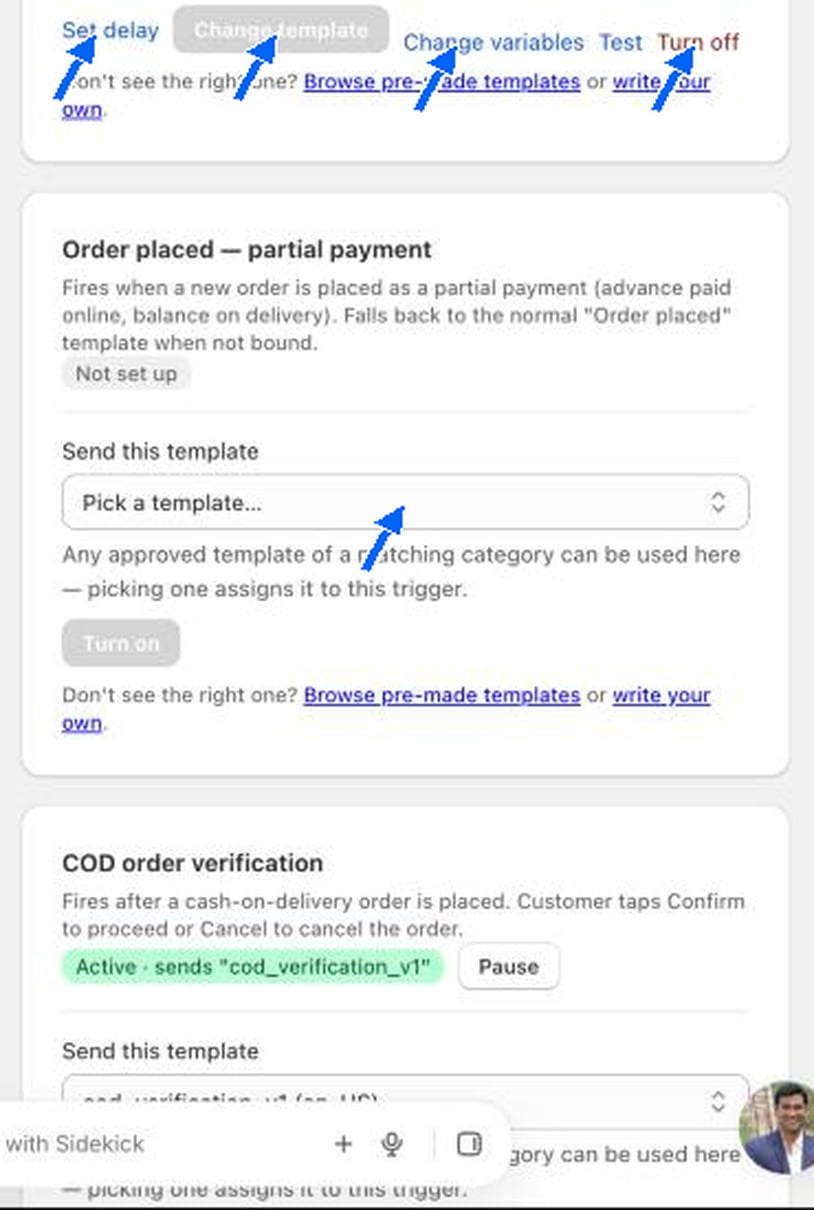
Notification card with Send this template drop-down, Turn on button, Set delay, Change variables, Test and Turn off
If you have no template for an event, WhatsApp usually approves a new one within a few hours.

Set a delay

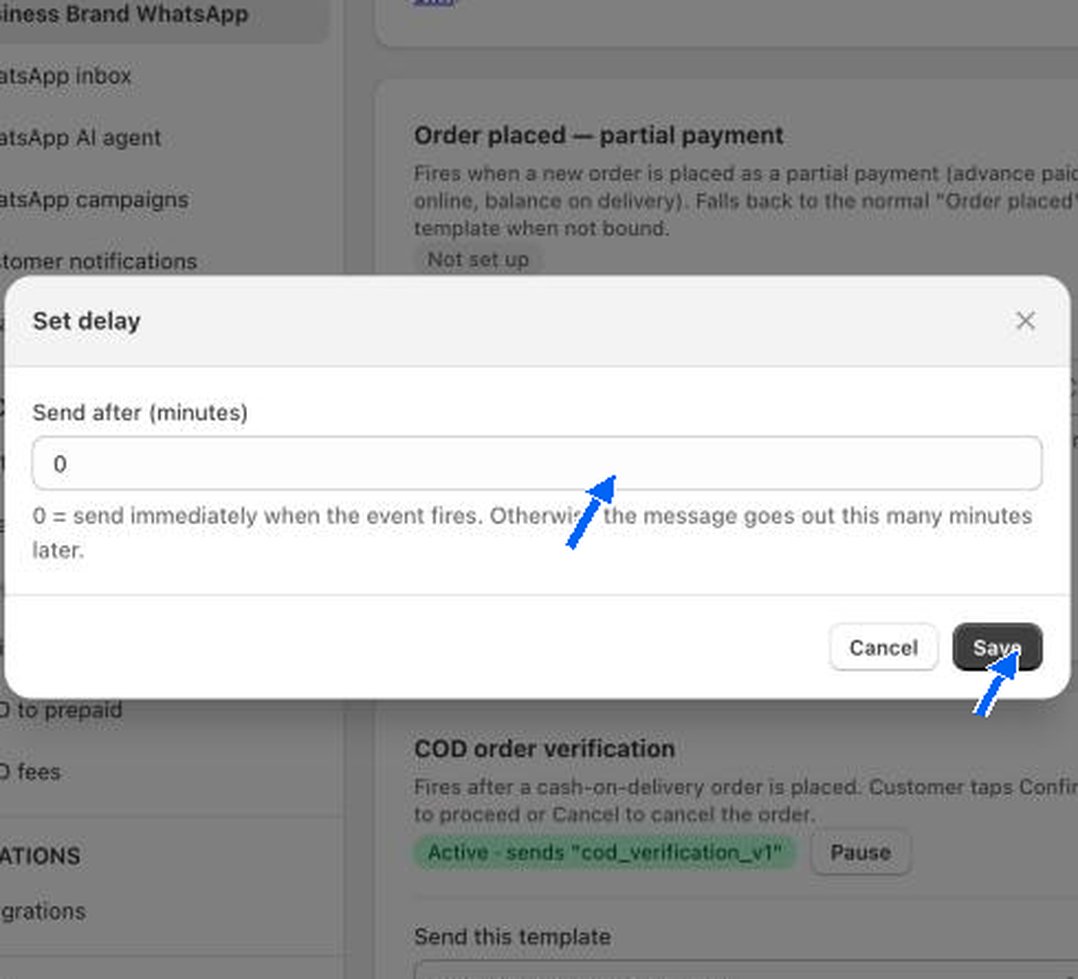
Set delay popup with the Send after minutes field
Send after (minutes) controls when the message goes out. 0 sends it immediately when the event fires. Any other number sends it that many minutes later. Click Save to apply it.

Change variables
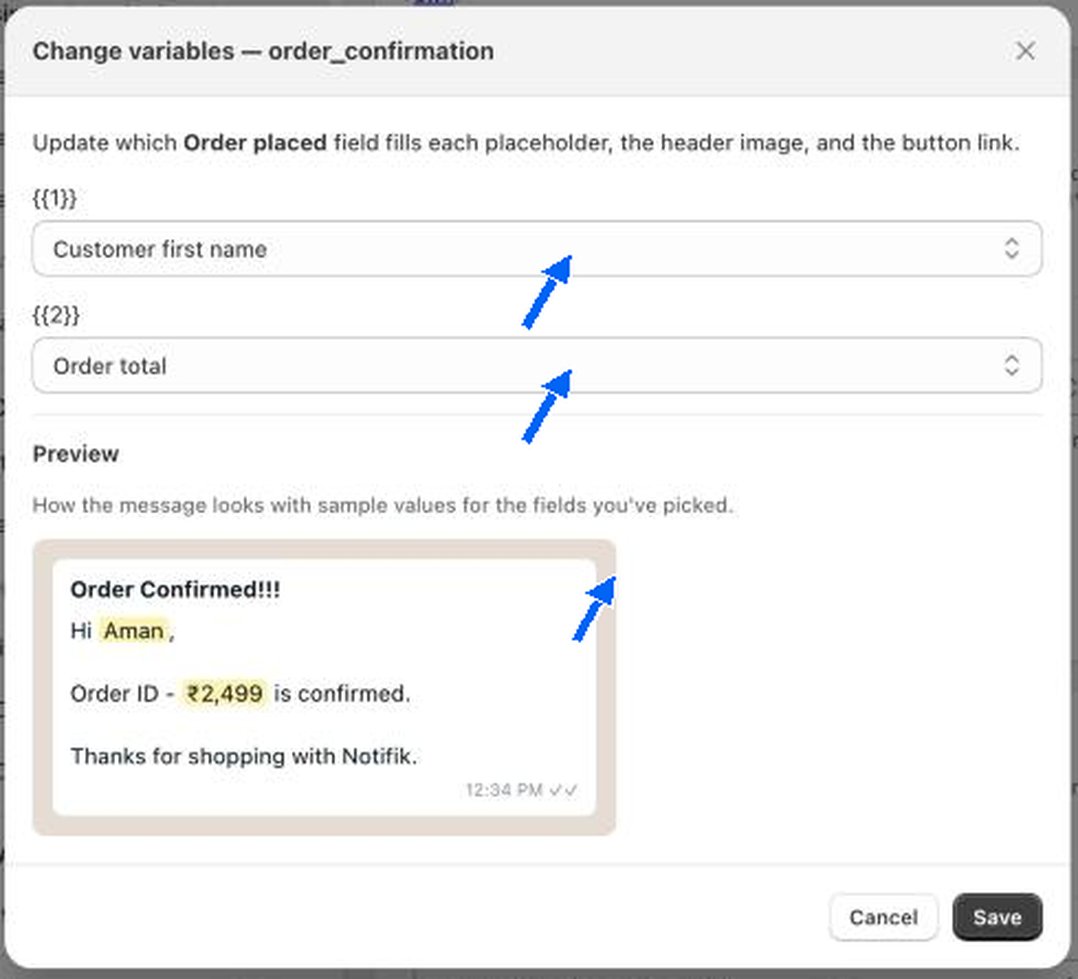
Change variables popup mapping each placeholder to an order field, with a live preview
Templates contain numbered placeholders such as {{1}} and {{2}}. Change variables lets you pick which field from the order fills each one, and also the header image and the button link when the template has them. For the Order confirmation template, {{1}} is Customer first name and {{2}} is Order total. The Preview below shows the message with sample values, so you can check the wording before you click Save.
Changing variables affects every message sent from that notification from then on. Use Test first.