
What your shopper sees
When a shopper taps Buy it now (or Buy with COD) on a product, the COD King popup opens on the Pay via screen. Every partial payment rule that applies to the cart is listed as one row, with the amount due now on the right.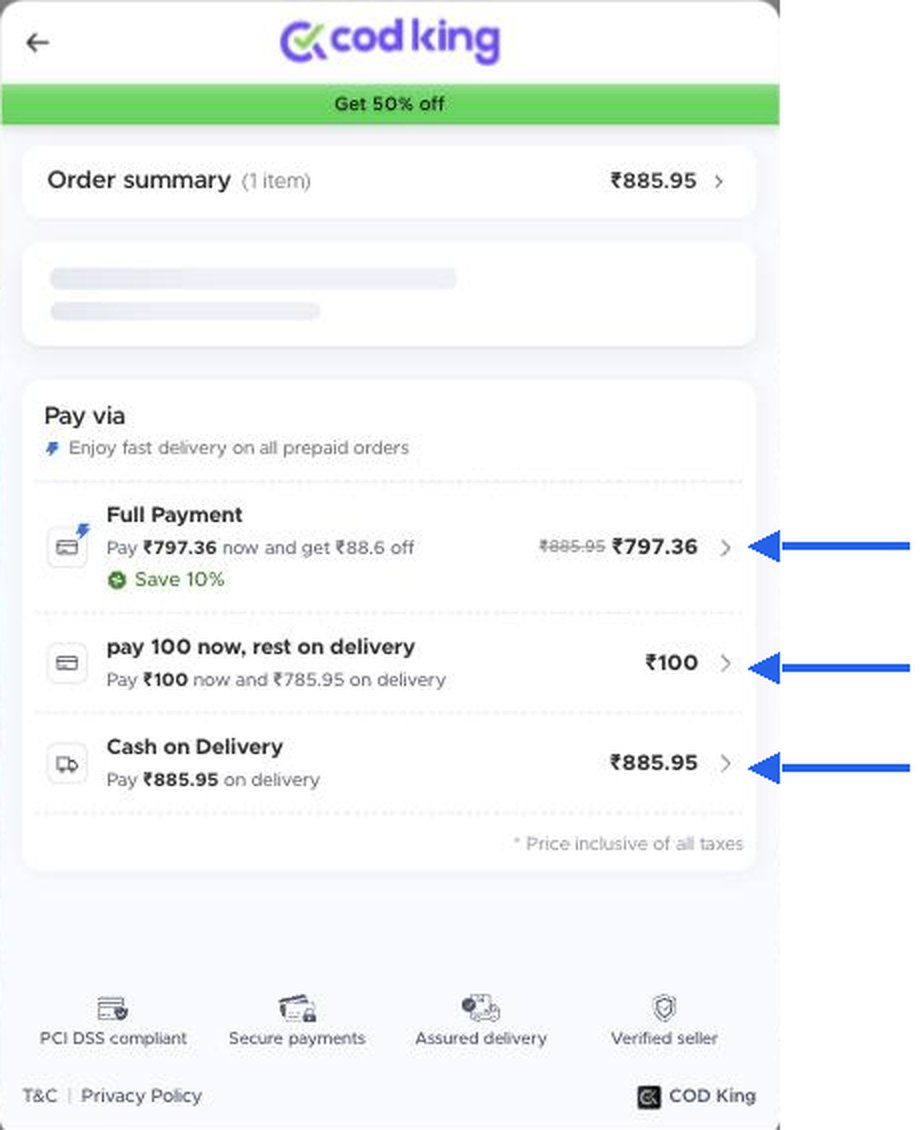
- Full Payment: pay Rs. 797.36 now and save 10%. The original price is struck through and a green Save 10% badge is shown.
- Pay 100 now, rest on delivery: pay Rs. 100 now and the remaining Rs. 785.95 on delivery.
- Cash on Delivery: pay Rs. 885.95 on delivery.
Open UI customization
1
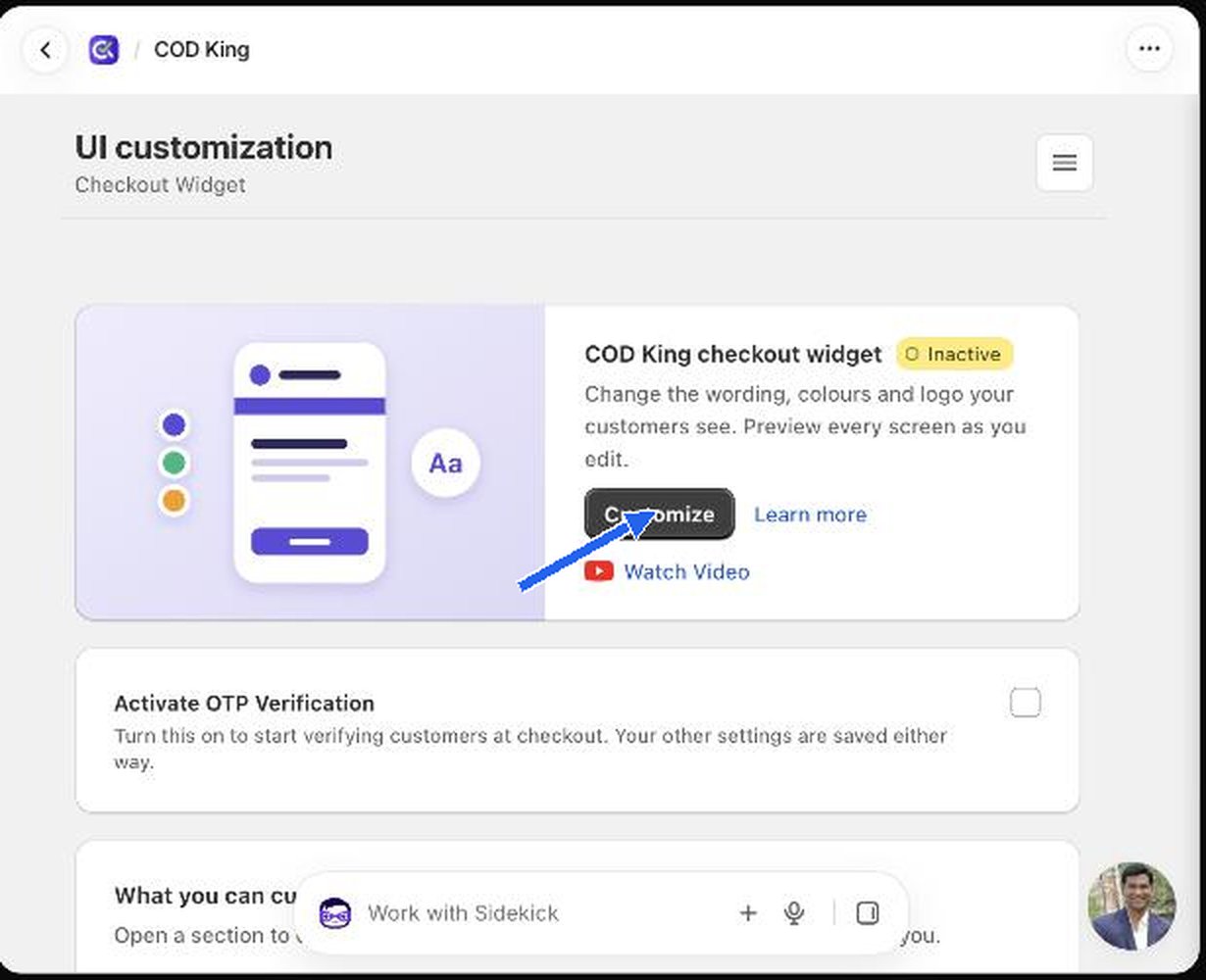
Go to Settings → UI customization
2
Click Customize
A full-screen editor opens with tabs: Logo and colours, Order summary, Delivery address, Coupons, Pop-up messages, Phone number screen, Verify code screen, Payment screen, Where it runs and Advanced.
3
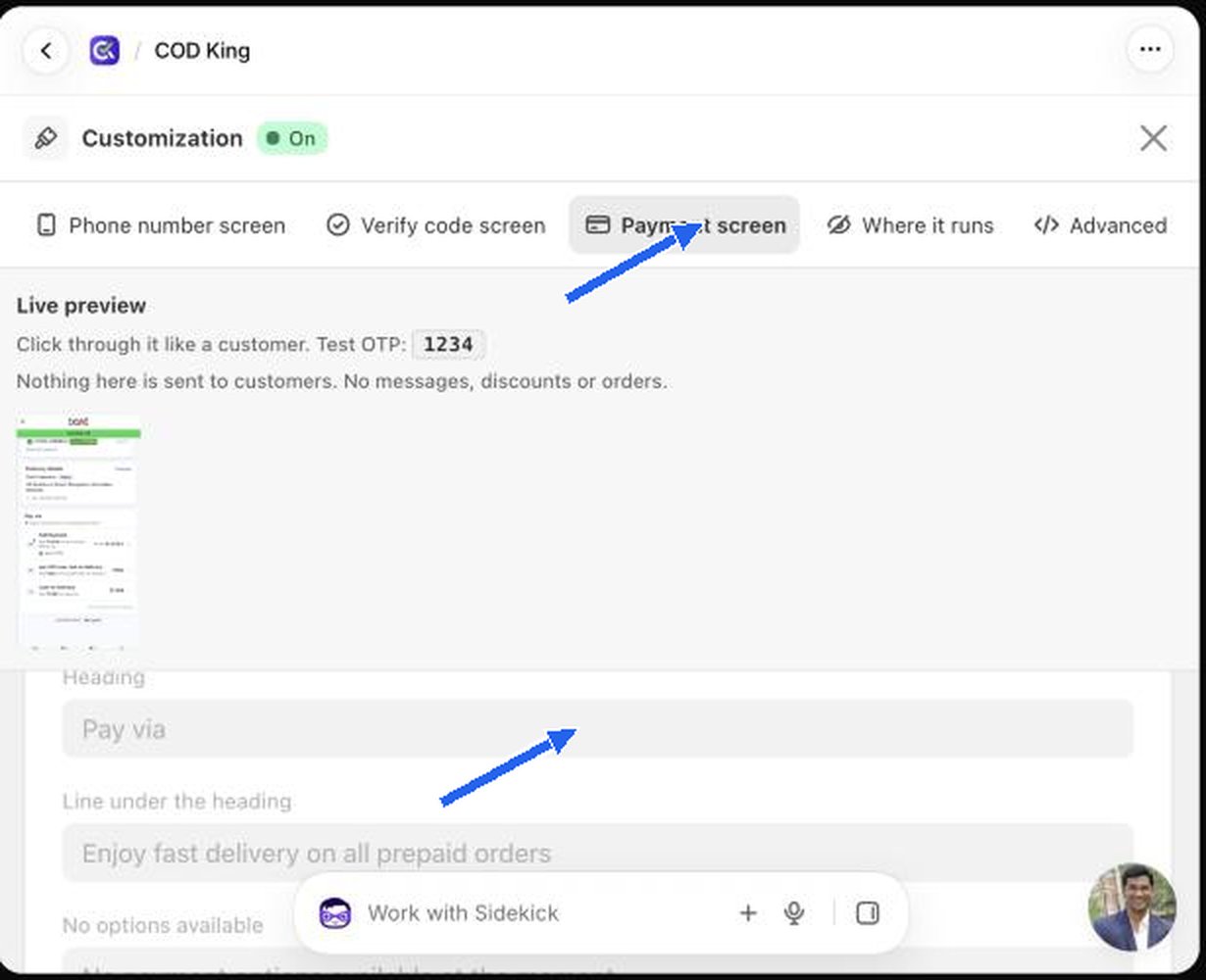
Open the Payment screen tab
Partial Payment text lives here.
The text boxes in the editor become editable once OTP verification is switched on for your store. While it is off, they show the default text greyed out. Blank boxes keep the default wording, and
{{curly braces}} fill in automatically.The live preview
The right-hand Live preview shows exactly what a shopper sees. It is a safe sandbox: nothing is sent to customers, and no discounts or orders are created. The test OTP is1234.
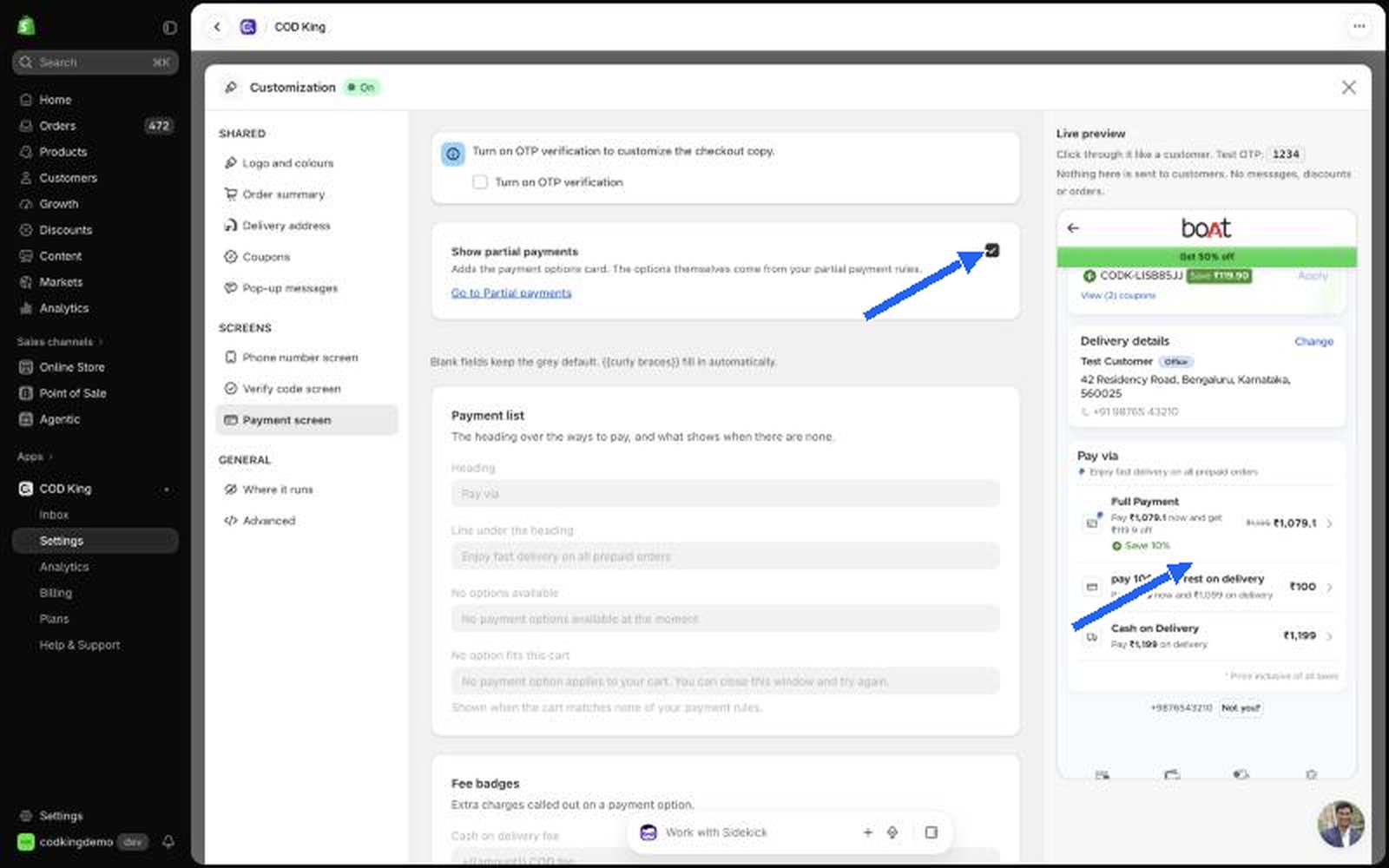
Show partial payments
At the top of the Payment screen tab is a switch called Show partial payments. It adds the payment options card to the popup. The options themselves come from your partial payment rules. A Go to Partial payments link takes you back to the rules.Payment list text
Badges
Small labels on each payment option.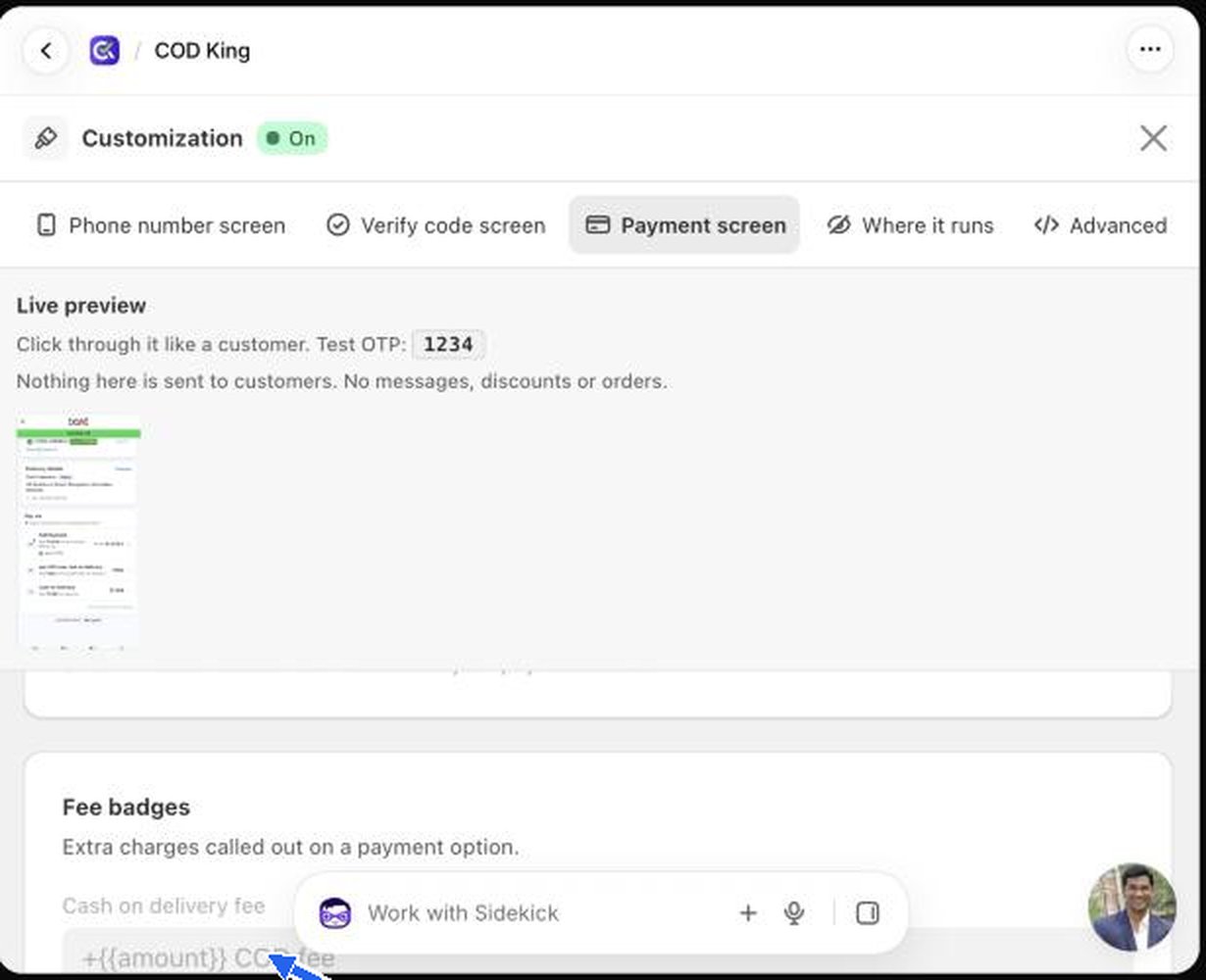
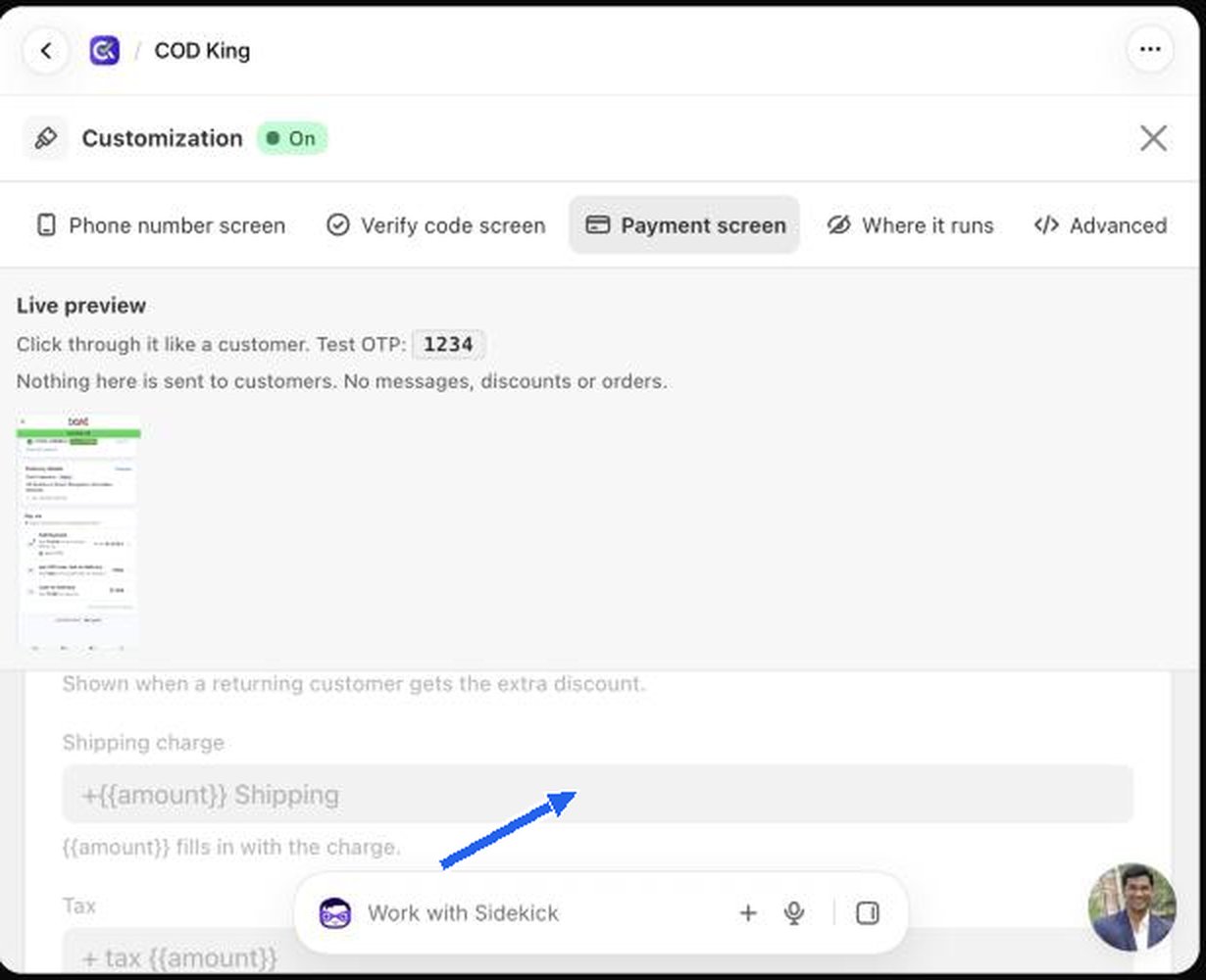
There are also Discount badges (for example
Flat {{percent}}% Off for a percentage discount) below these.
Branding
Under Logo and colours you can add your logo and store name so the popup looks like your store. You can also add a promotional banner (for example Get 50% OFF on Your 2nd Order) and match its colours to your brand.Test as a shopper
1
Open your store
If your store is password-protected, enter the password first.
2
Use a product that fits your rules
Choose a product that is in stock and passes the product and cart-value conditions of the rule you are testing.
3
Press the buy button and fill the popup
Enter a delivery address (and a phone number and OTP if verification is on).
4
Check the Pay via screen
You should see one line per qualifying rule, in the same order as your rules list, with the amounts and badges you set.
5
Place a small test order if you need to
Choose the deposit option and pay the upfront amount. Then open the order in Shopify and the COD King analytics to confirm it was recorded (see Analytics).