
The rules list
Open Settings → Partial payments & COD. The Payment Rules tab lists your rules.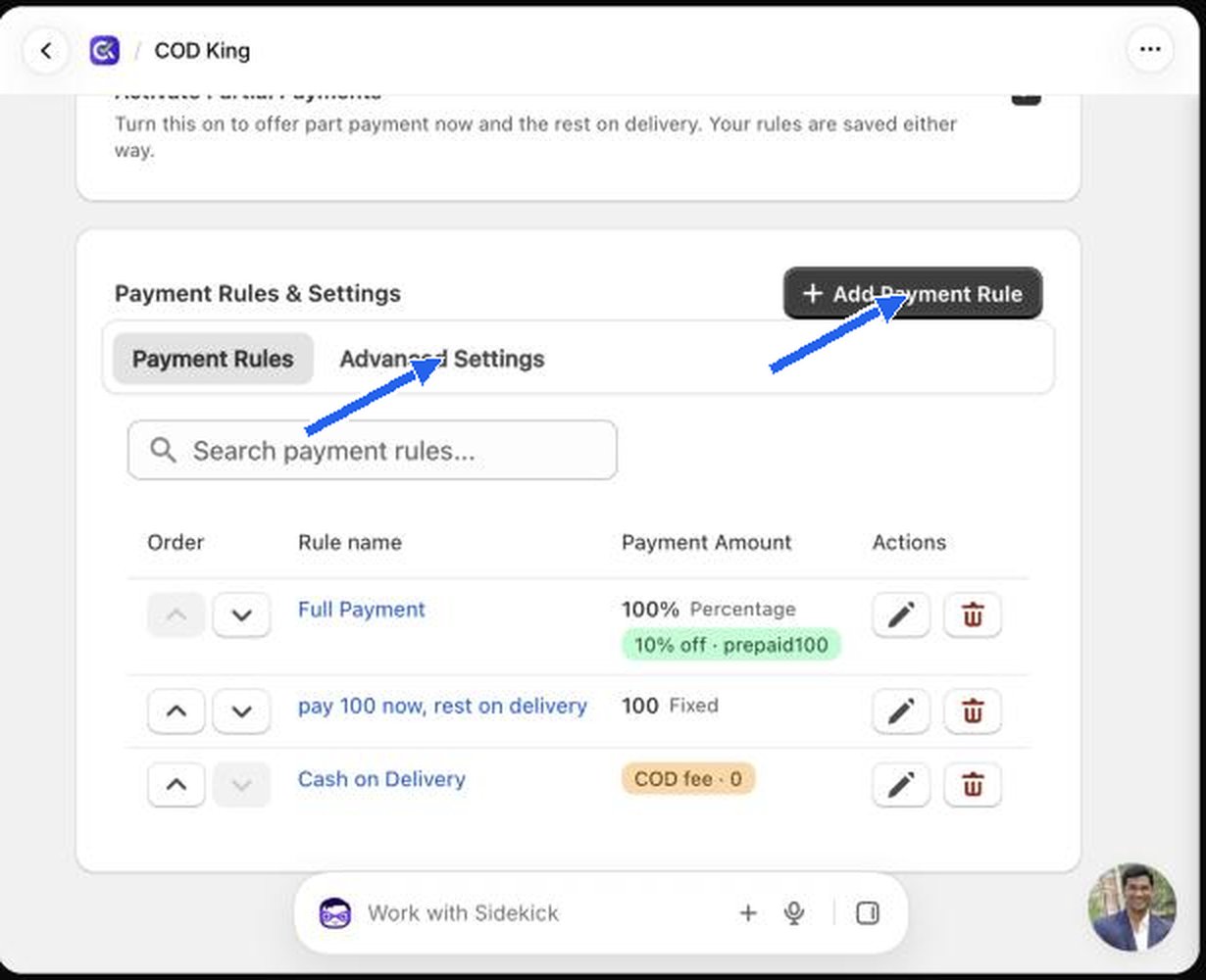
Use the Search payment rules… box to find a rule by name when you have many.
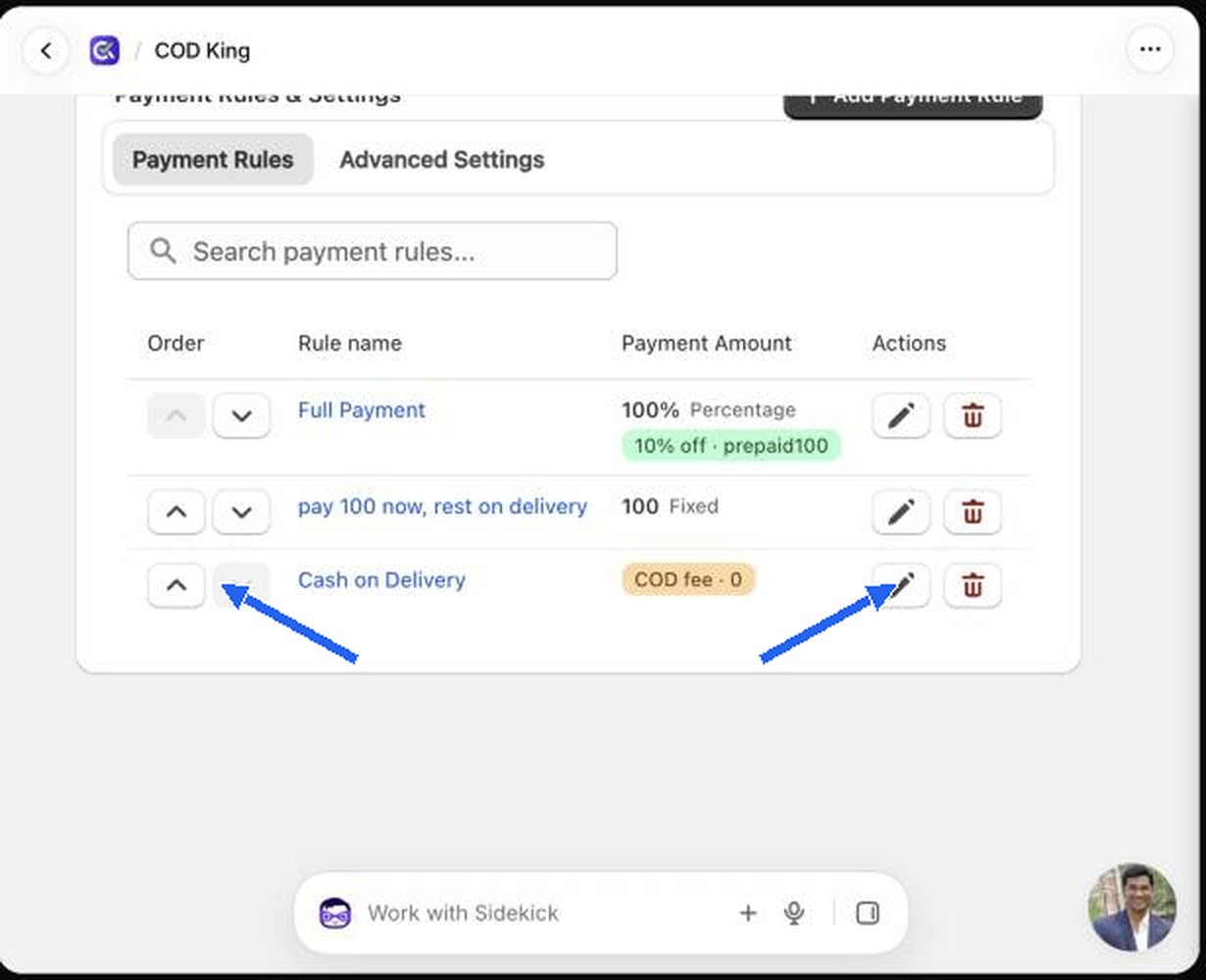
The first rule has a greyed-out up arrow and the last rule a greyed-out down arrow, because they cannot move further. Put the option you want most shoppers to pick at the top, usually your prepaid or deposit option.
Add a payment rule
Click Add Payment Rule. The form opens with a Rule Configuration card at the top, followed by optional sections marked (Advanced). You only need the first card to create a working rule.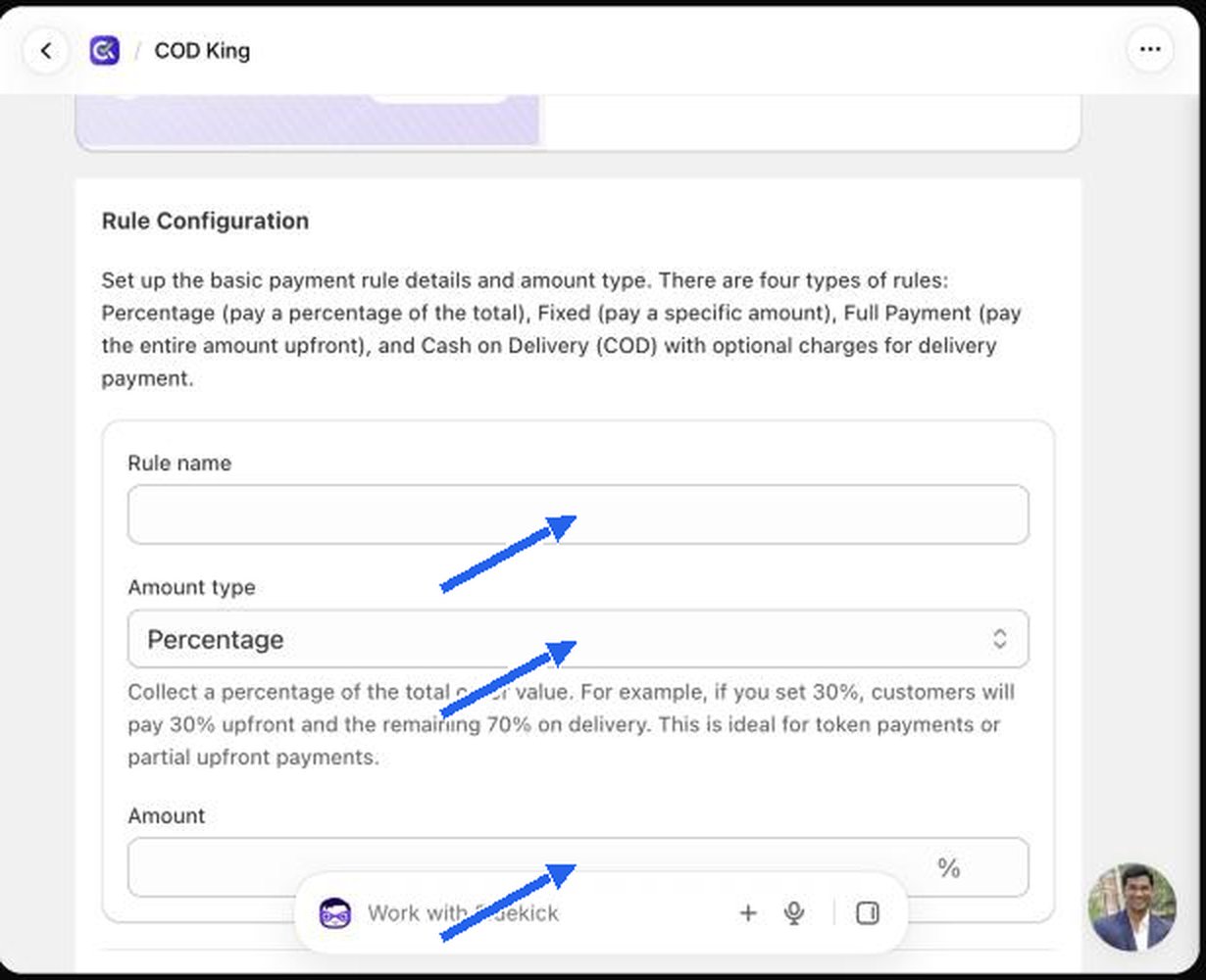
- Rule name. Shown internally in the list. Choose something clear, like 10% deposit.
- Amount type. One of four types described below.
- Amount. The value for that type.
The four rule types
Percentage
The shopper pays a percentage of the order total now and the rest on delivery. For example, at 30% the shopper pays 30% upfront and 70% on delivery. It suits higher-value orders, since the deposit grows with the cart.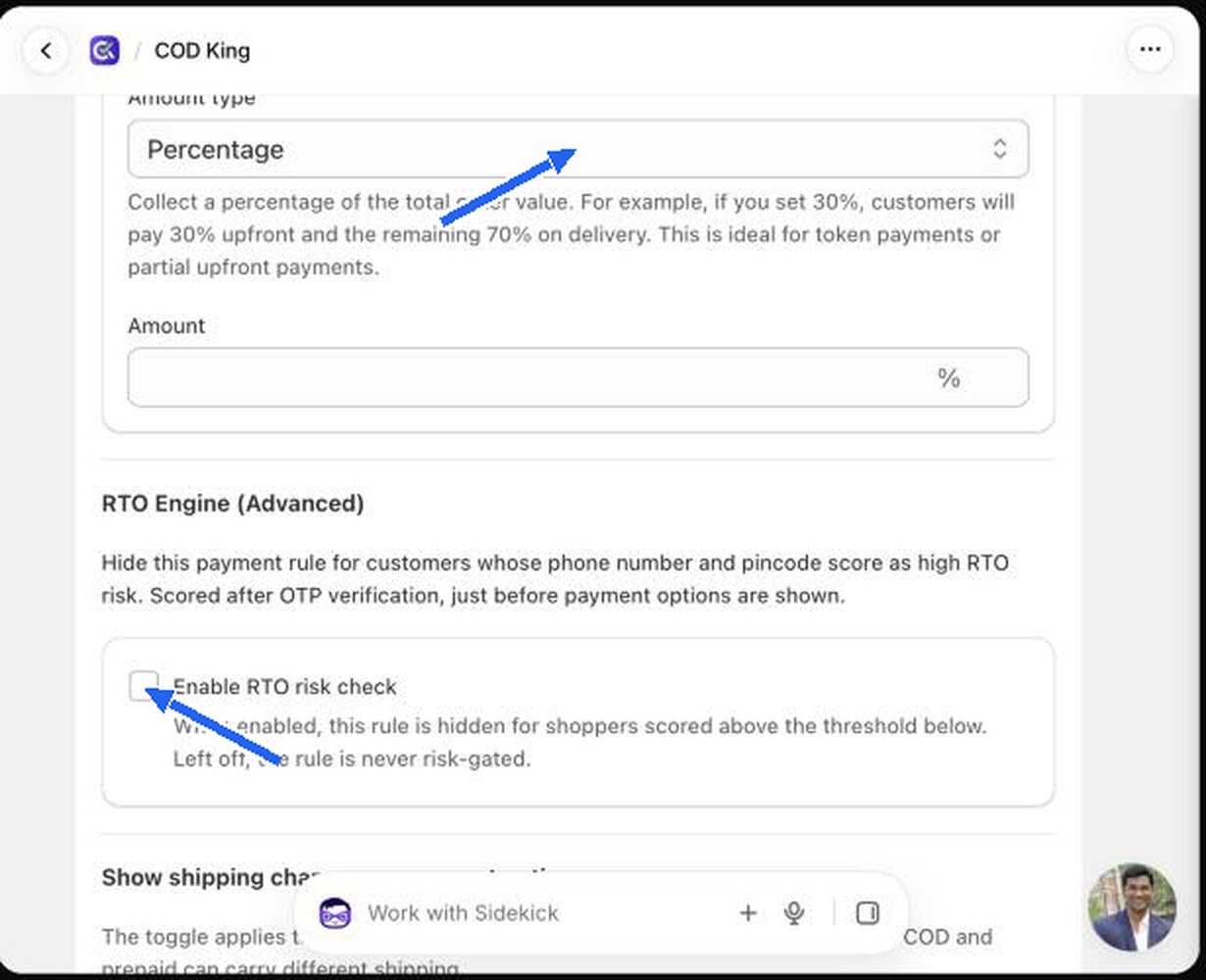
Fixed
The shopper pays a fixed amount whatever the order total, for example ₹500 now and the balance later. It suits stores with many similar-priced orders and gives a predictable commitment.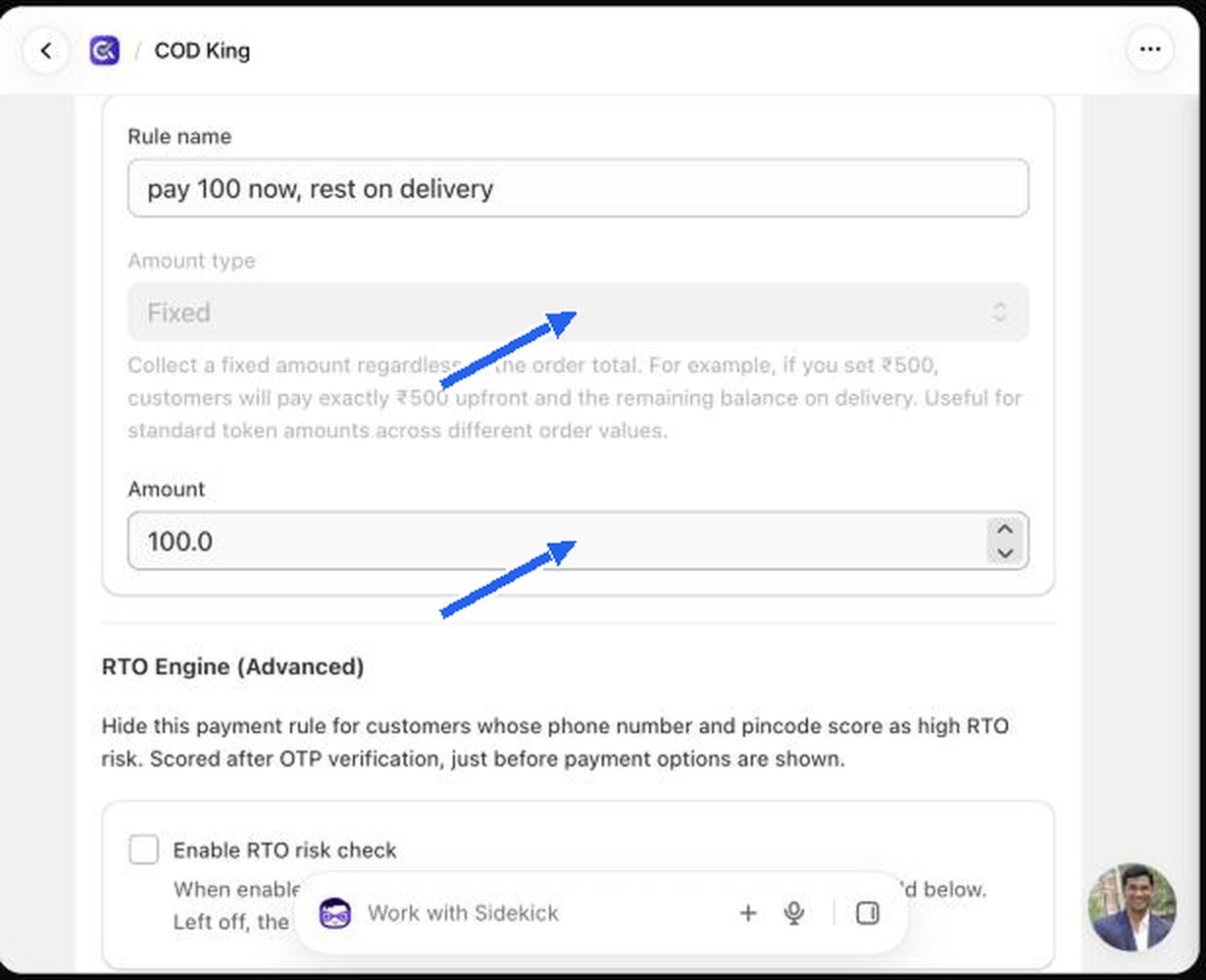
Full Payment
The shopper pays 100% of the order upfront. The form says Full payment will always collect 100% of the order amount. Use it to reward prepaid orders with a discount.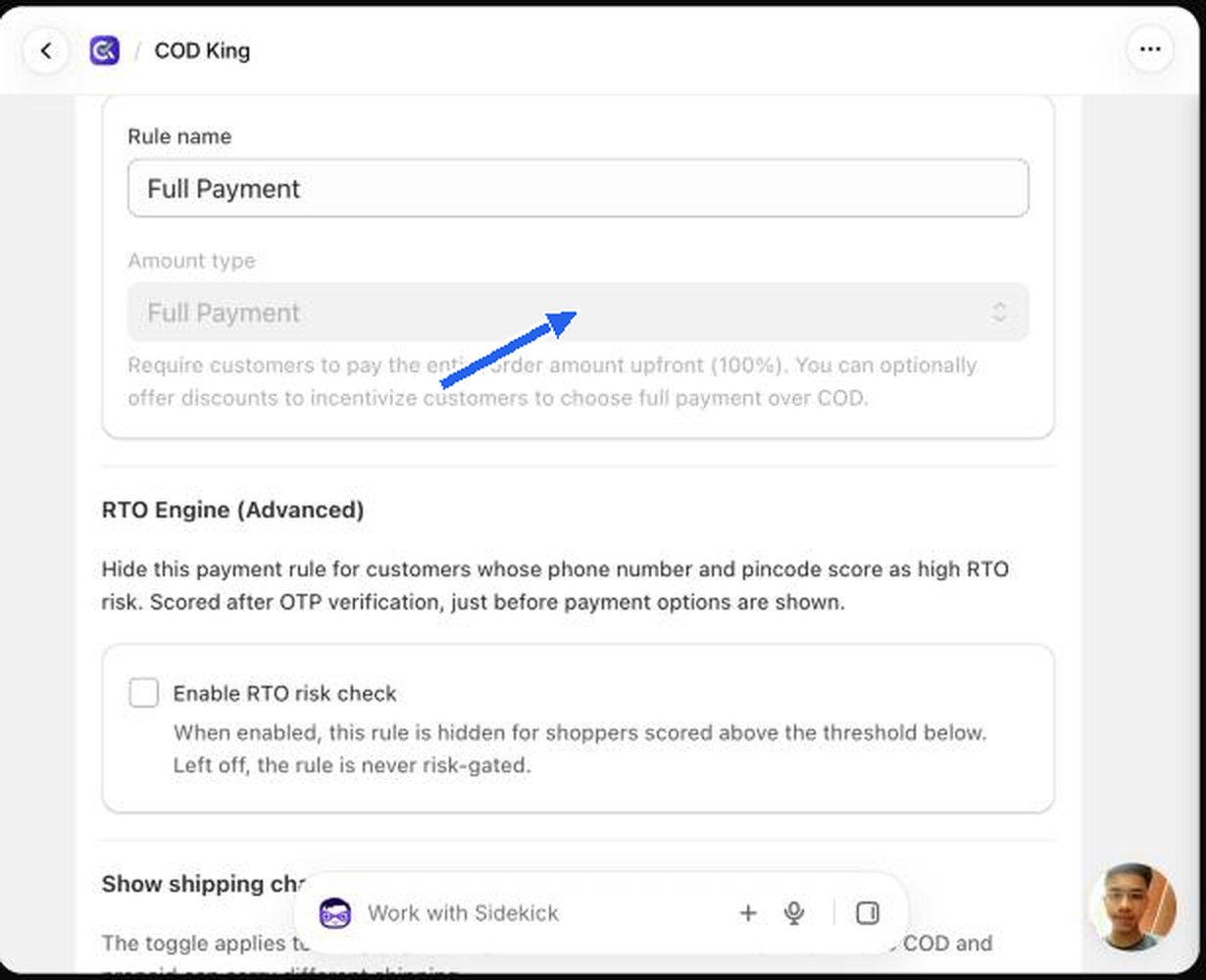
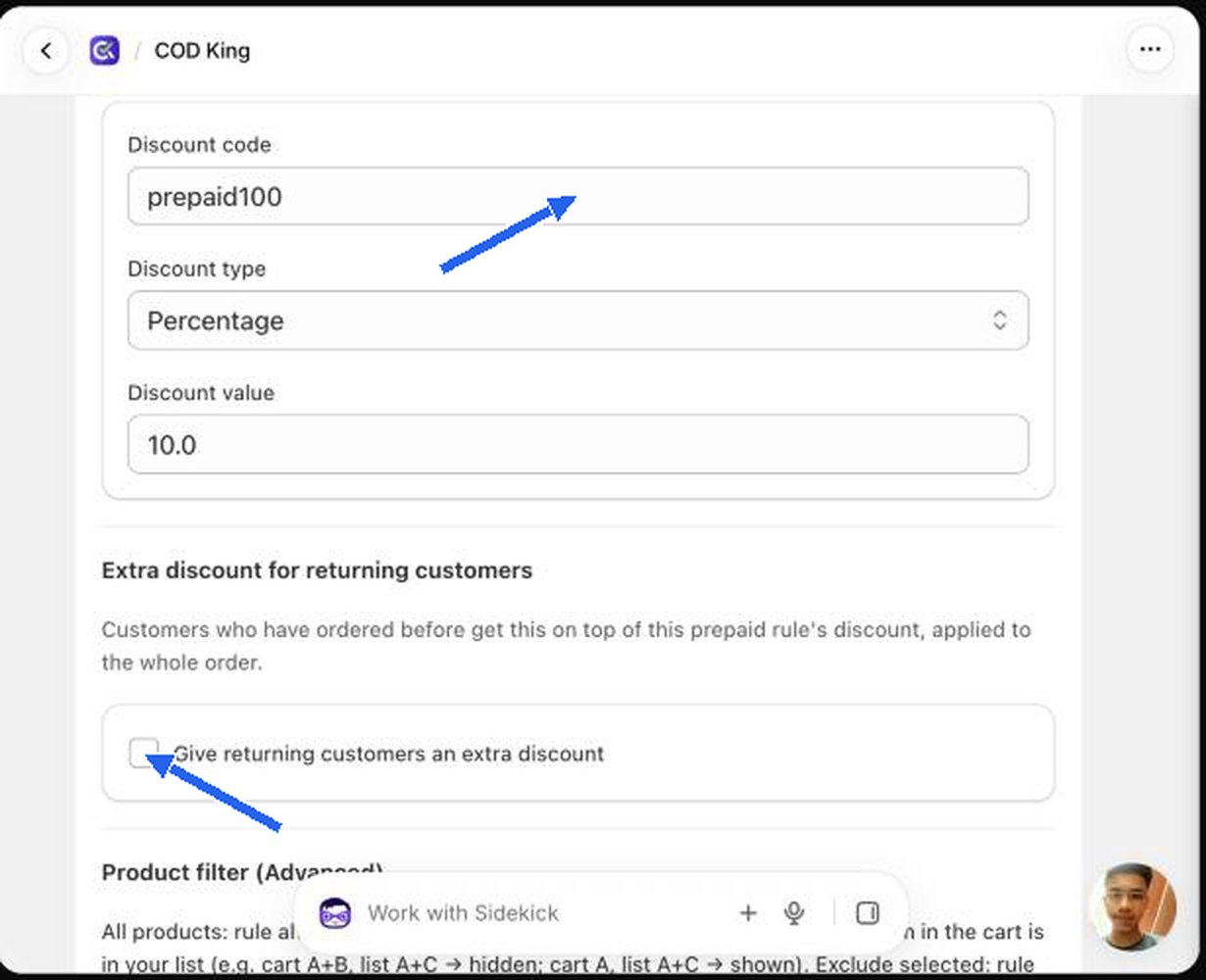
- A discount for everyone who picks the rule (Discount settings).
- An extra discount for returning customers (see below).
Cash on Delivery (COD)
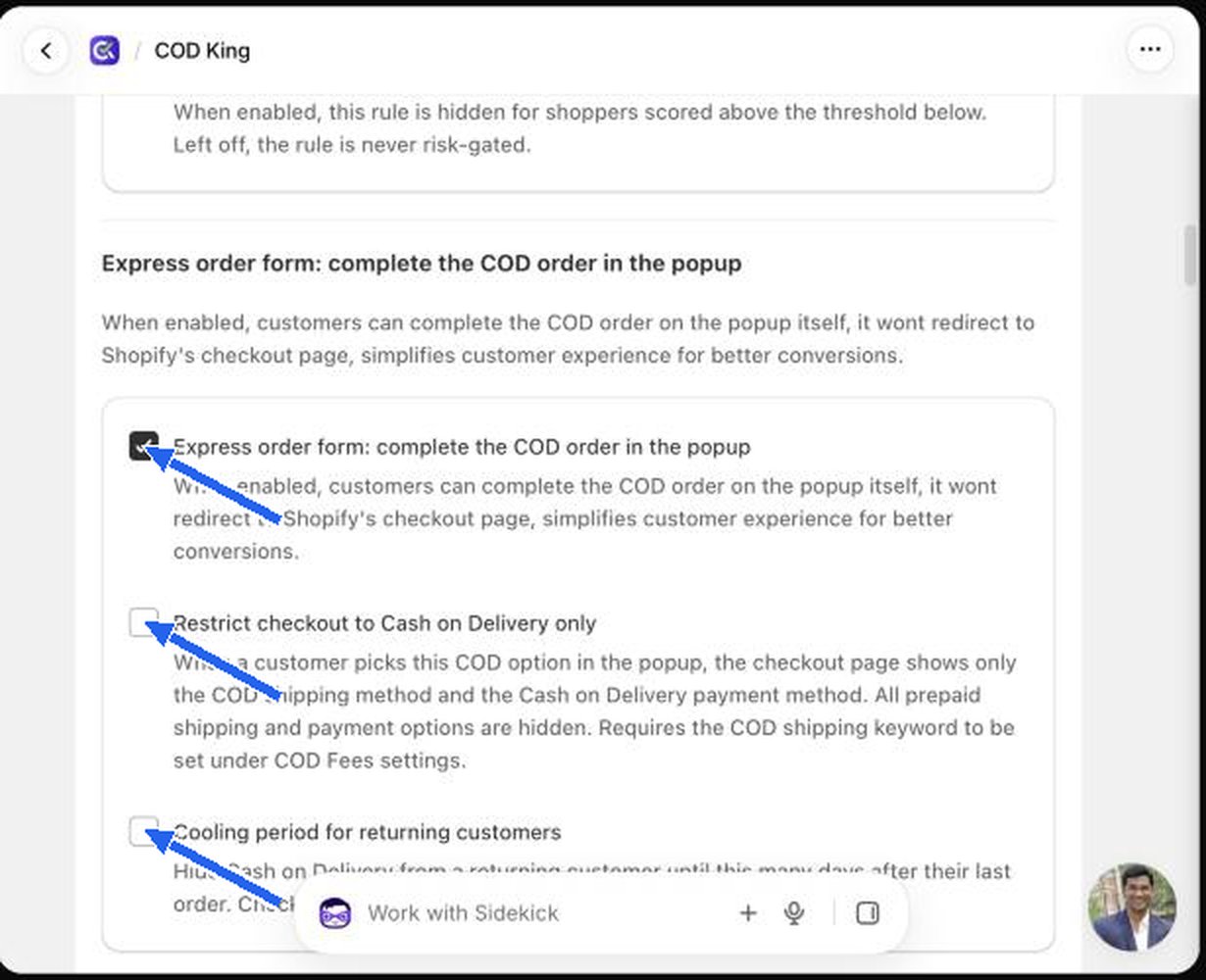
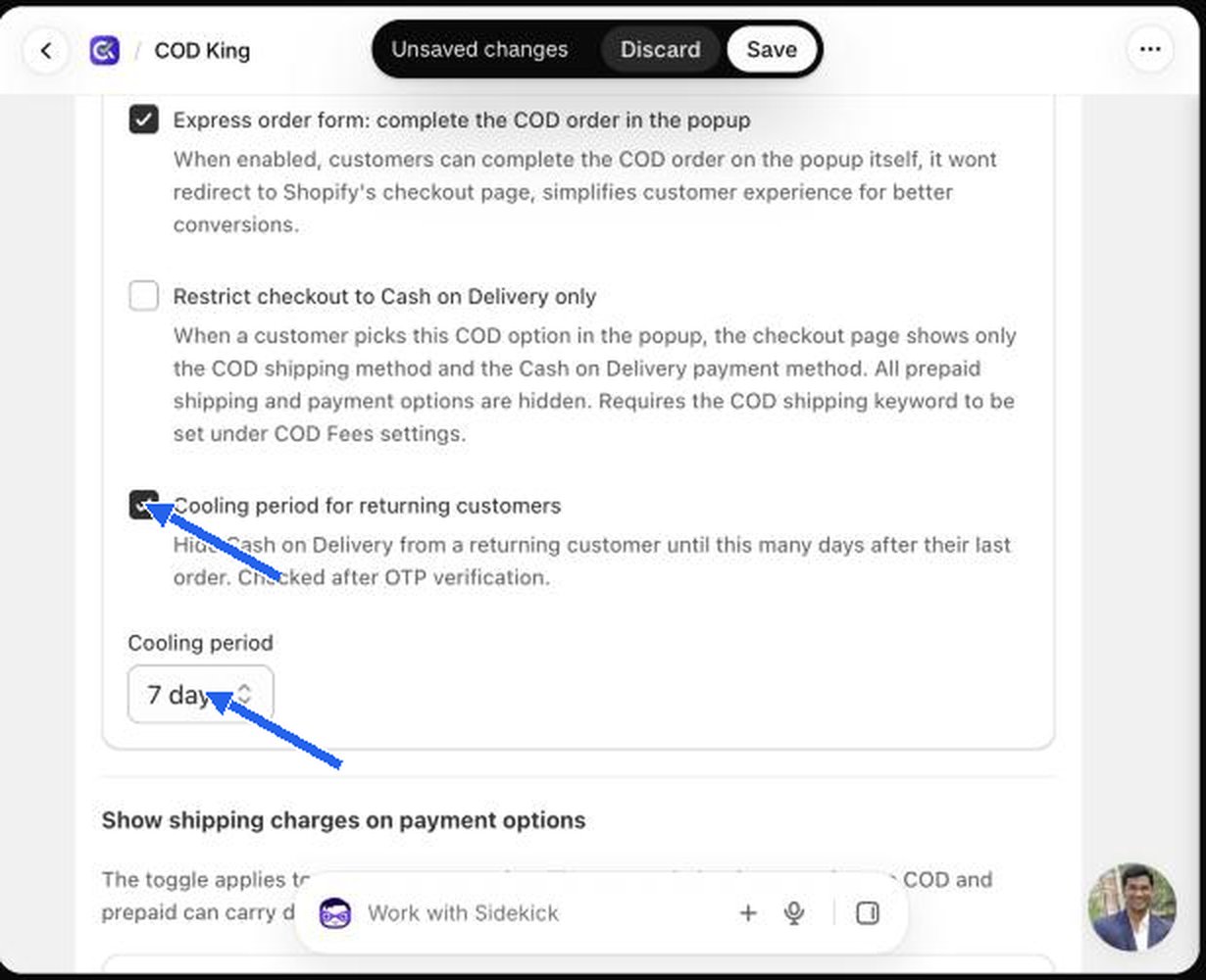
Nothing is paid upfront; the shopper pays the full amount (plus any delivery charge) when the parcel arrives. Leave the charge blank or 0 for standard COD, or enter a value to add a COD fee. In the form the field is called COD Charge.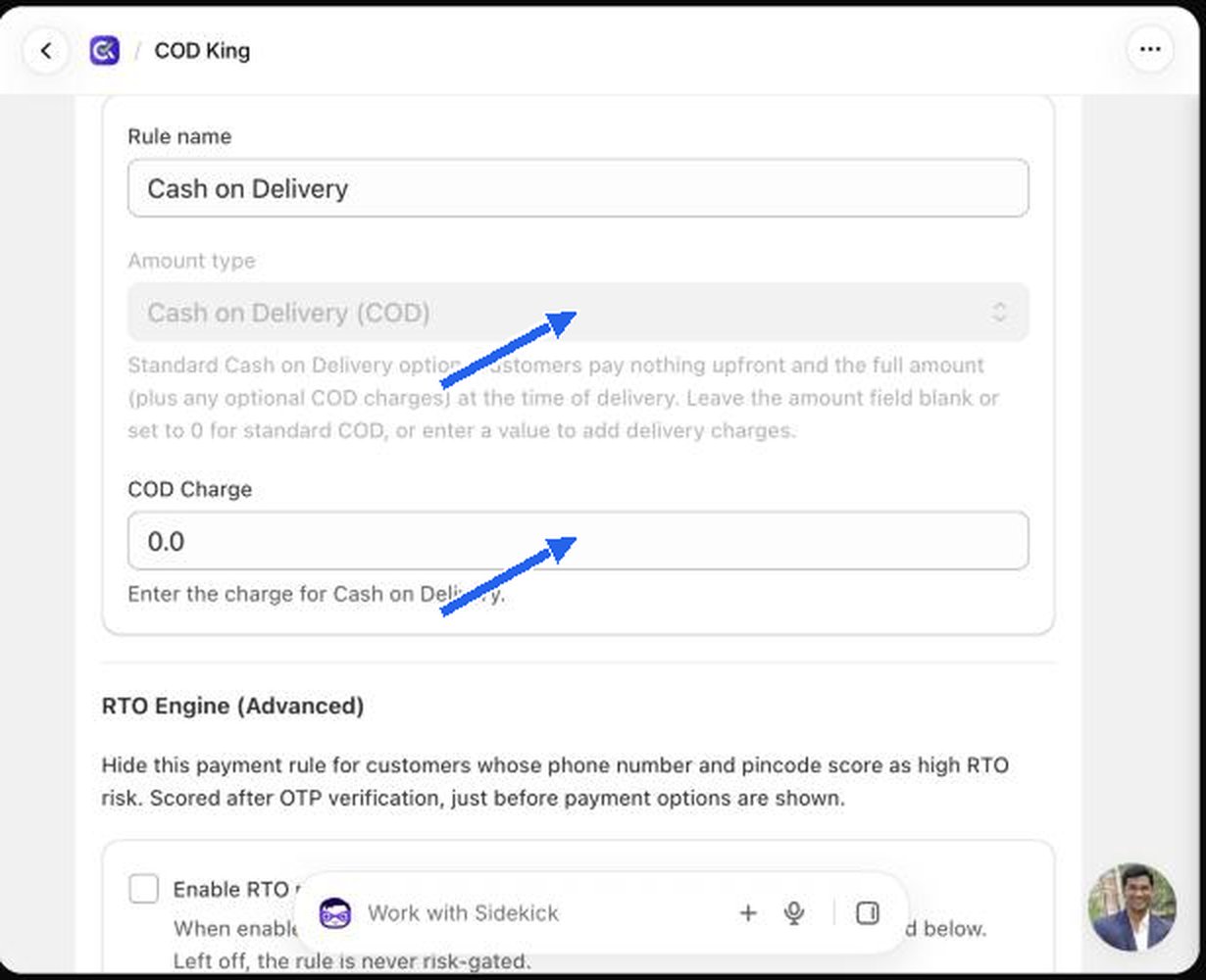
Putting the types together
A common setup is three rules in this order:
This is exactly the setup shown in the shopper preview in Customer experience.