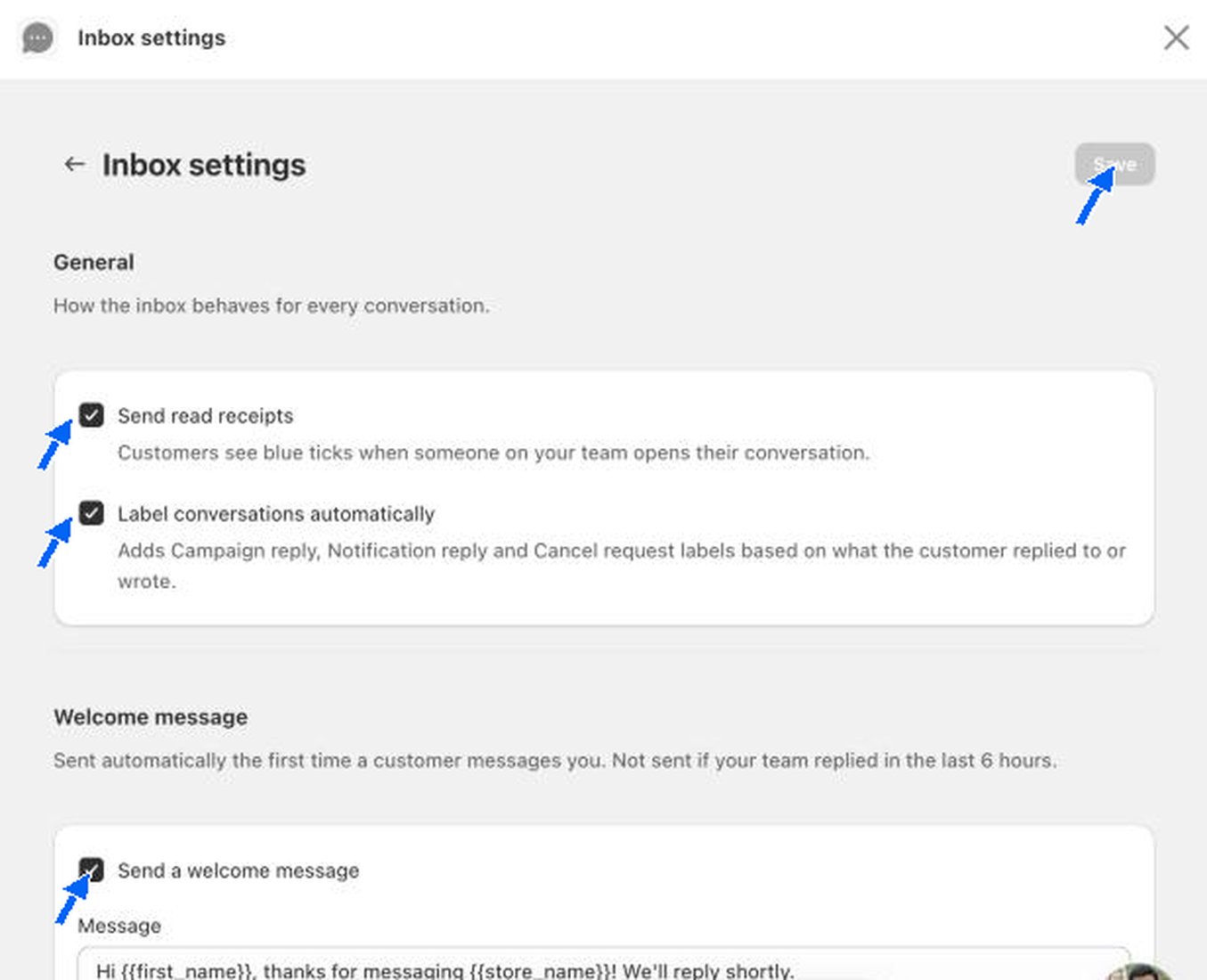
Inbox settings control how the inbox behaves for every conversation. Open it from Inbox settings at the top of the WhatsApp inbox. Most settings are saved with the Save button at the top right of the page. The button stays grey until you change something. Saved replies and Labels save right away.

General

Inbox settings General section with Send read receipts and Label conversations automatically ticked, and the start of the Welcome message section

Welcome message

The welcome message is sent automatically the first time a customer messages you. It is not sent if your team replied in the last 6 hours.
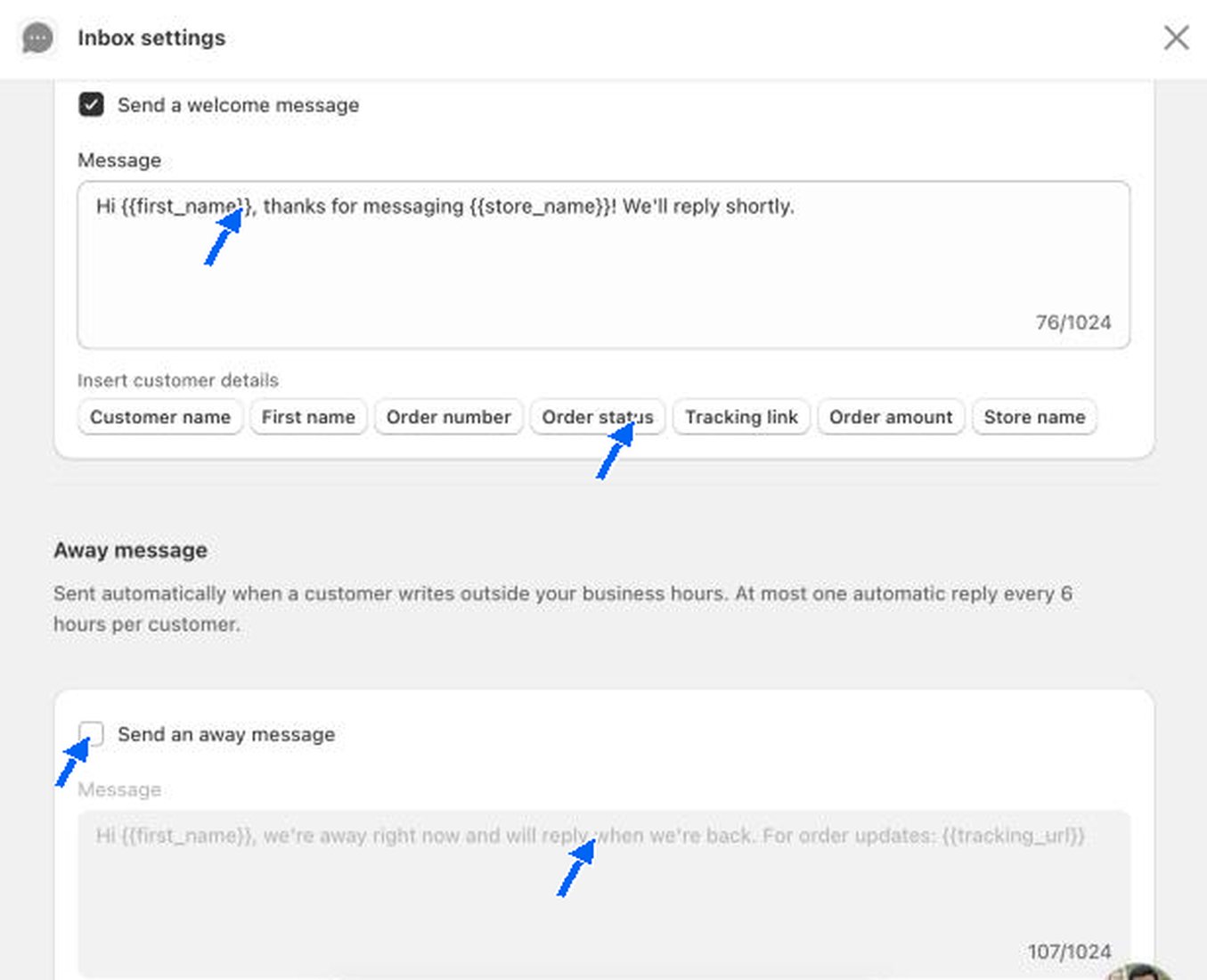
Welcome message box with a short greeting and the customer detail buttons, followed by the Away message section
Tick Send a welcome message, then write the text. It can be up to 1,024 characters. Under Insert customer details, click a button to add a field that fills in for each customer: Customer name, First name, Order number, Order status, Tracking link, Order amount or Store name. They appear in the text as placeholders such as {{first_name}}.
Keep the welcome message short and set an expectation, for example “We’ll reply shortly”. The default text does this.

Away message

The away message is sent automatically when a customer writes outside your business hours. COD King sends at most one automatic reply every 6 hours to the same customer. Tick Send an away message and write the text. It uses the same customer detail buttons and the same 1,024 character limit.

Business hours

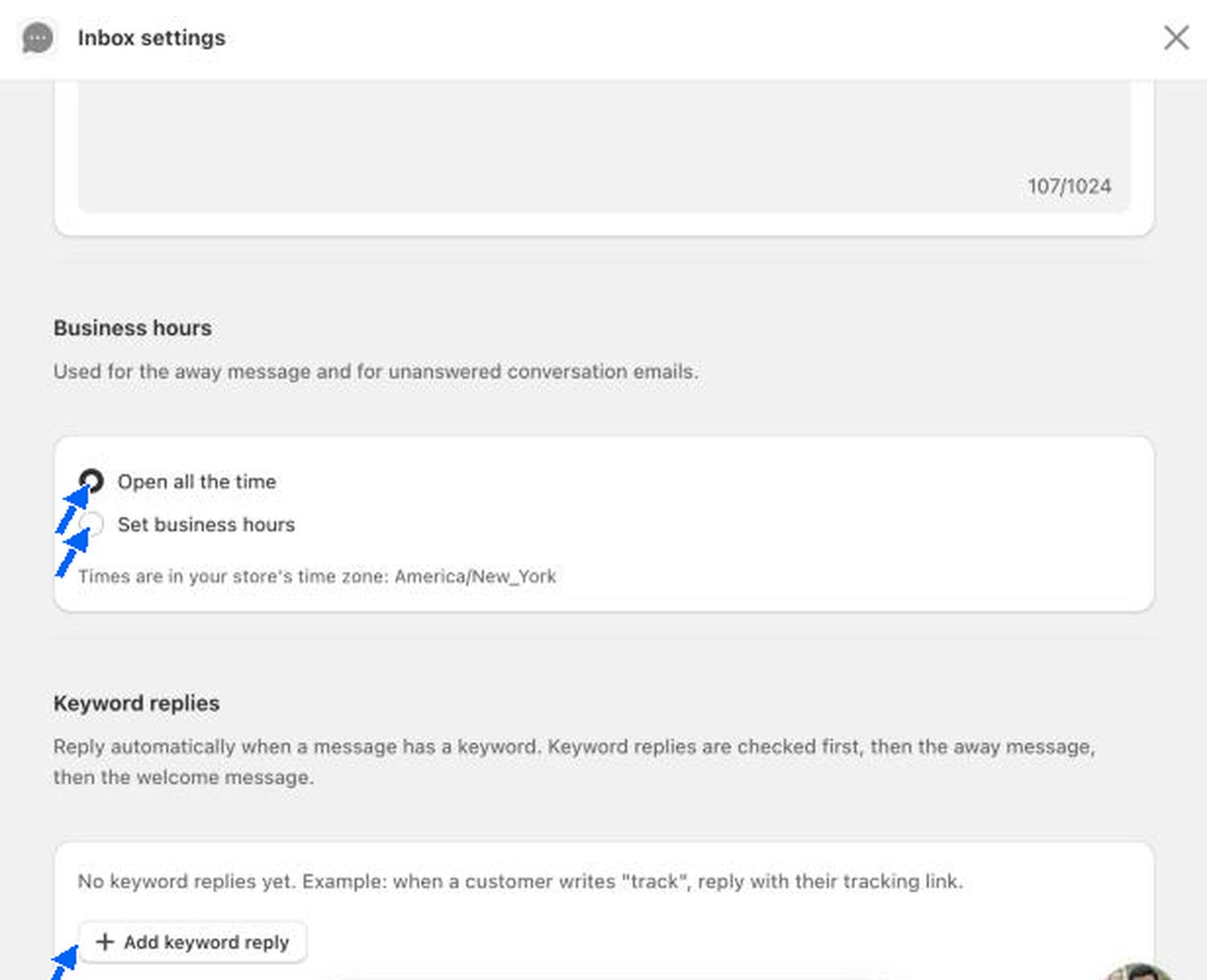
Business hours section with Open all the time selected, followed by the Keyword replies section
Business hours are used by the away message and by the unanswered conversation email.
  • Open all the time. Every message counts as inside business hours, so no away message is sent.
  • Set business hours. Choose your opening times for each day.
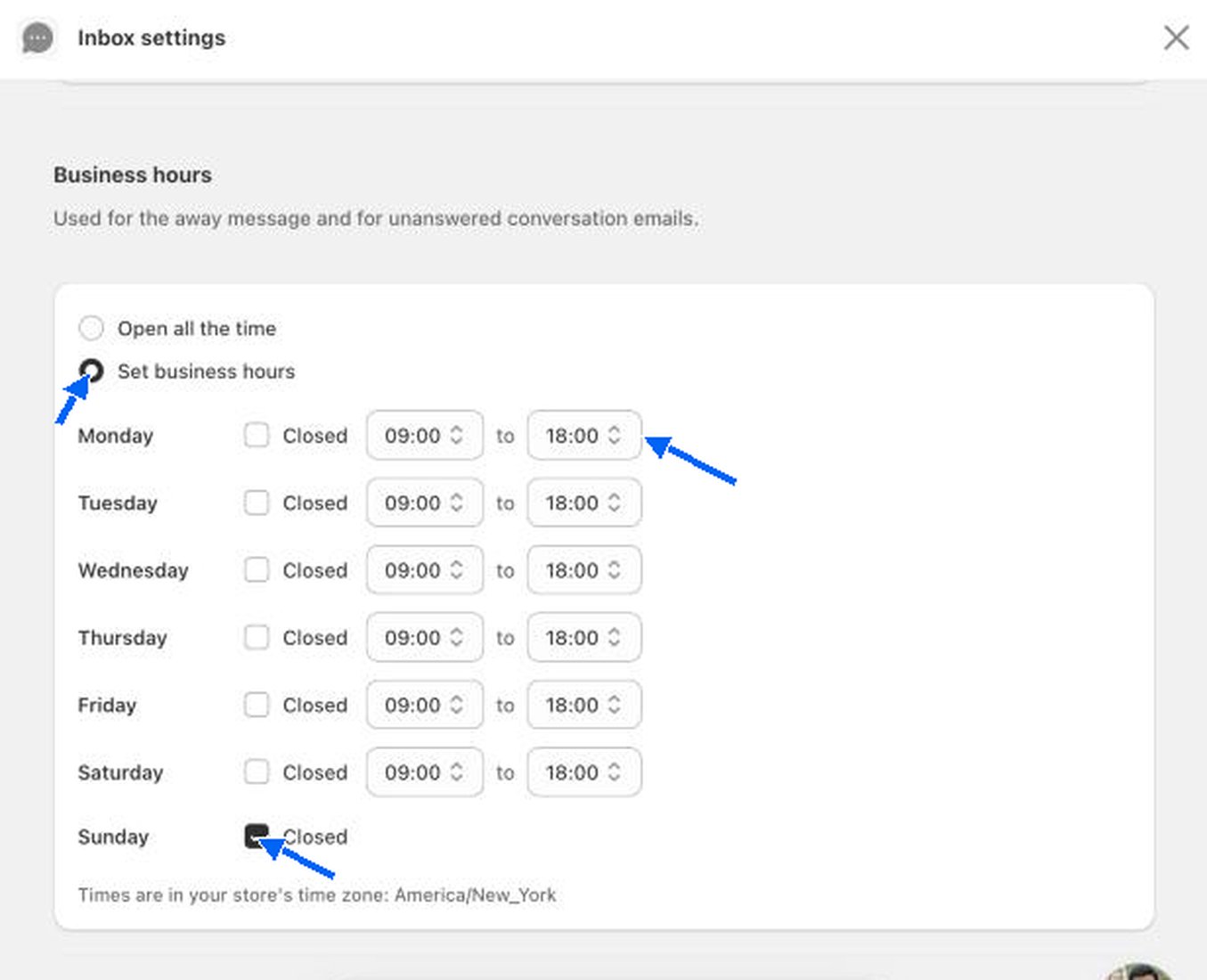
Business hours with Set business hours selected showing a row for each day with Closed tick box and start and end times
Each day has a Closed tick box and a start and end time. The screenshot shows 09:00 to 18:00 from Monday to Saturday with Sunday closed. Times follow your Shopify store’s time zone, which is shown under the table.

Keyword replies

Keyword replies answer automatically when a customer’s message contains a word you choose. They are checked first, then the away message, then the welcome message. So a keyword reply wins over both.
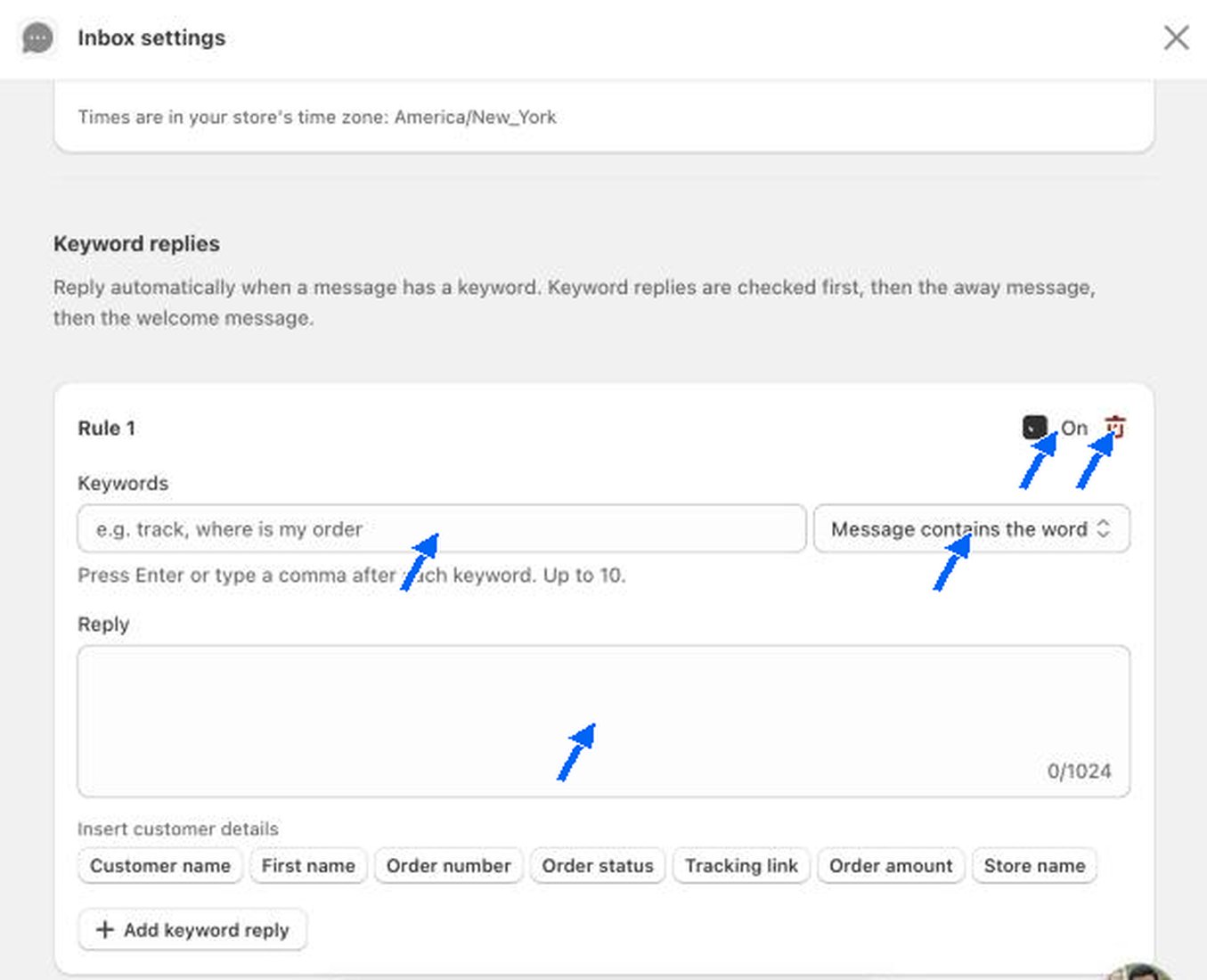
A keyword reply rule with the Keywords box, the match type, the Reply box and the customer detail buttons
Click Add keyword reply to add a rule.
A good first rule: keywords track, where is my order, reply with the Tracking link button. The Reply box is empty until you write it.

Unanswered conversation email

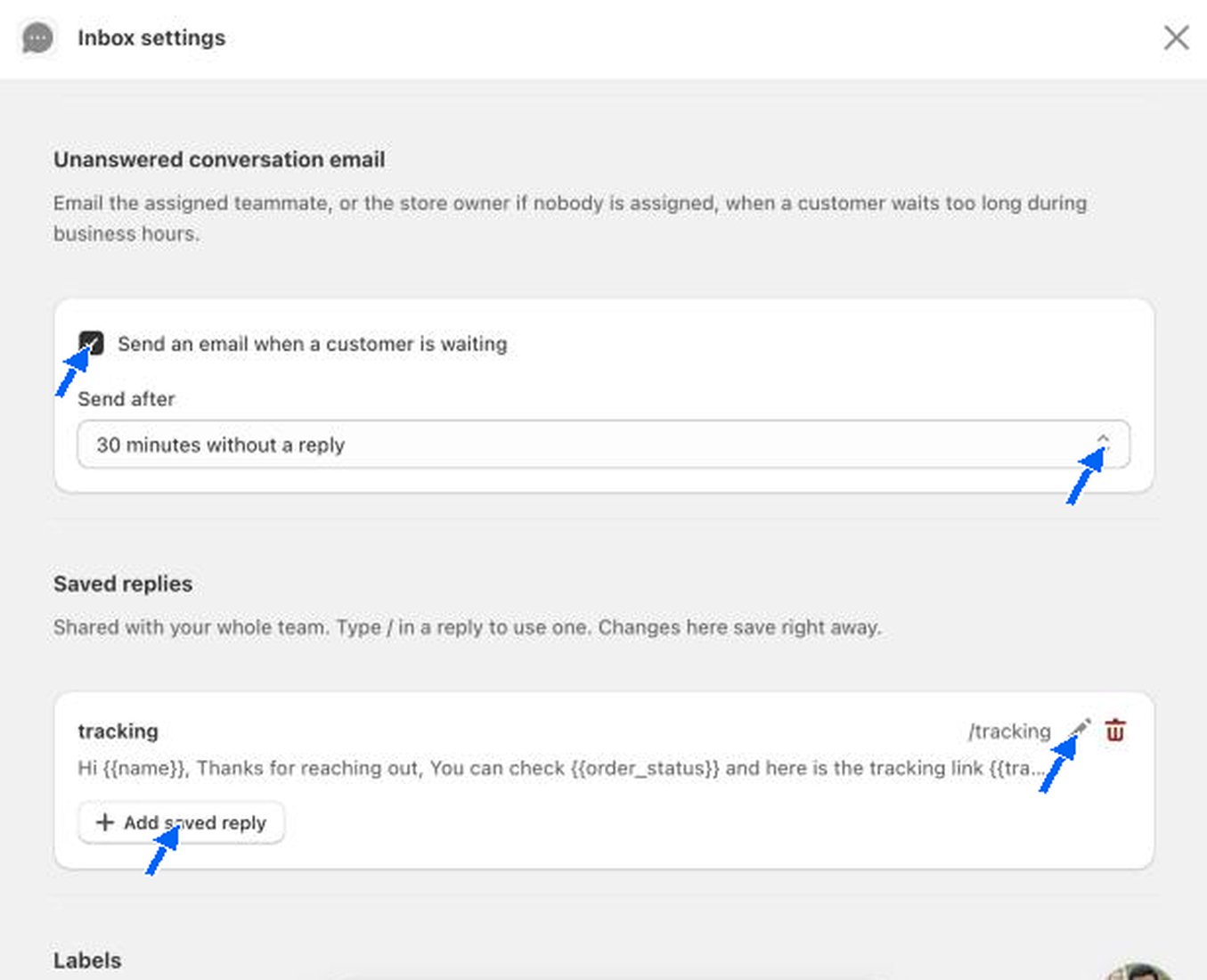
Unanswered conversation email option with a 30 minutes without a reply setting, followed by the Saved replies section with one reply called tracking
When this is on, COD King emails the assigned teammate, or the store owner if nobody is assigned, when a customer waits too long during your business hours. Tick Send an email when a customer is waiting and choose how long to wait in Send after. The screenshot shows 30 minutes without a reply.

Saved replies

Saved replies are ready-made answers shared with your whole team. In a conversation, type / in the reply box and pick a saved reply to use it. Each saved reply has a name and a shortcut. The example in the screenshot is named tracking, with the shortcut /tracking. Click the pencil to edit it, the bin to delete it, or Add saved reply to create a new one. Saved replies save right away.

Labels
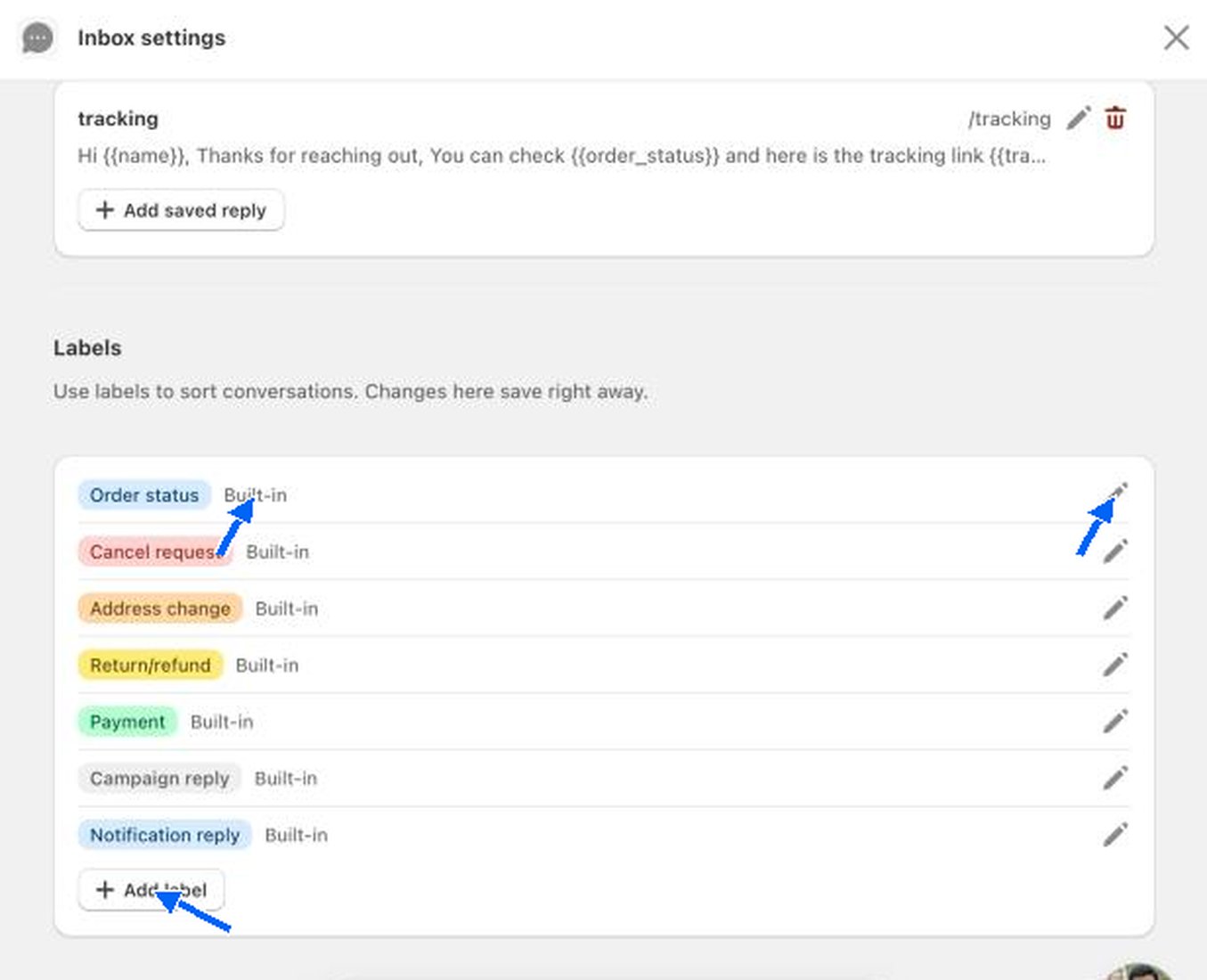
Labels section listing the seven built-in labels with a pencil edit icon and an Add label button
Labels sort your conversations. The seven built-in labels are marked Built-in. Click the pencil to edit one, or Add label to create your own. Changes here save right away.

WhatsApp inbox

How to read, filter and reply to conversations.

AI agent

Let the AI agent answer for you.