The inbox needs a connected WhatsApp number. If you have not connected one yet, start with Meta and WhatsApp approval and Connect your number.
The inbox at a glance
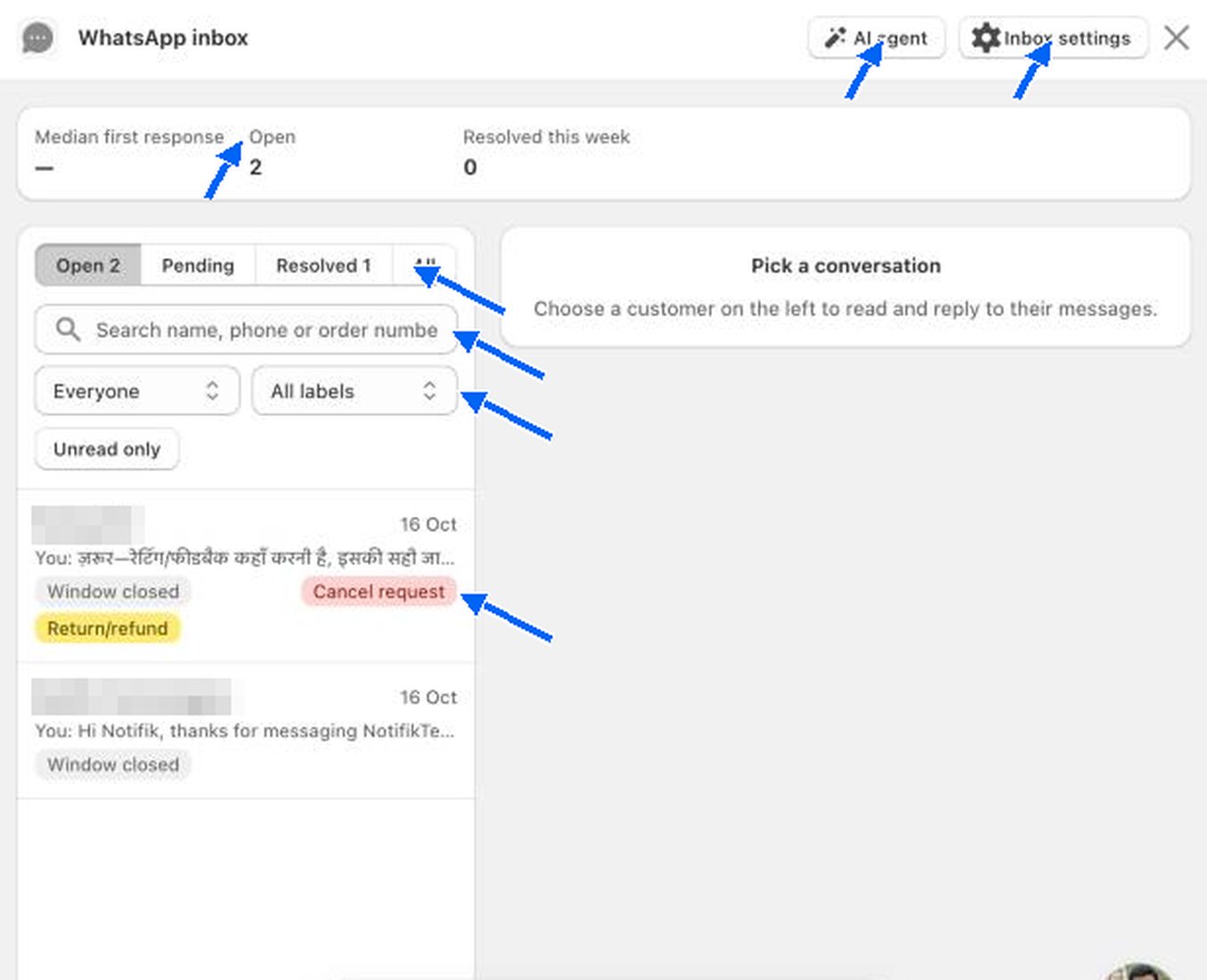
Each row in the list shows the customer, the date of the last message, a preview, and small tags. Window closed means the 24-hour reply window has ended. Coloured tags such as Cancel request are labels.
Read and reply to a conversation
Click a conversation to open it on the right.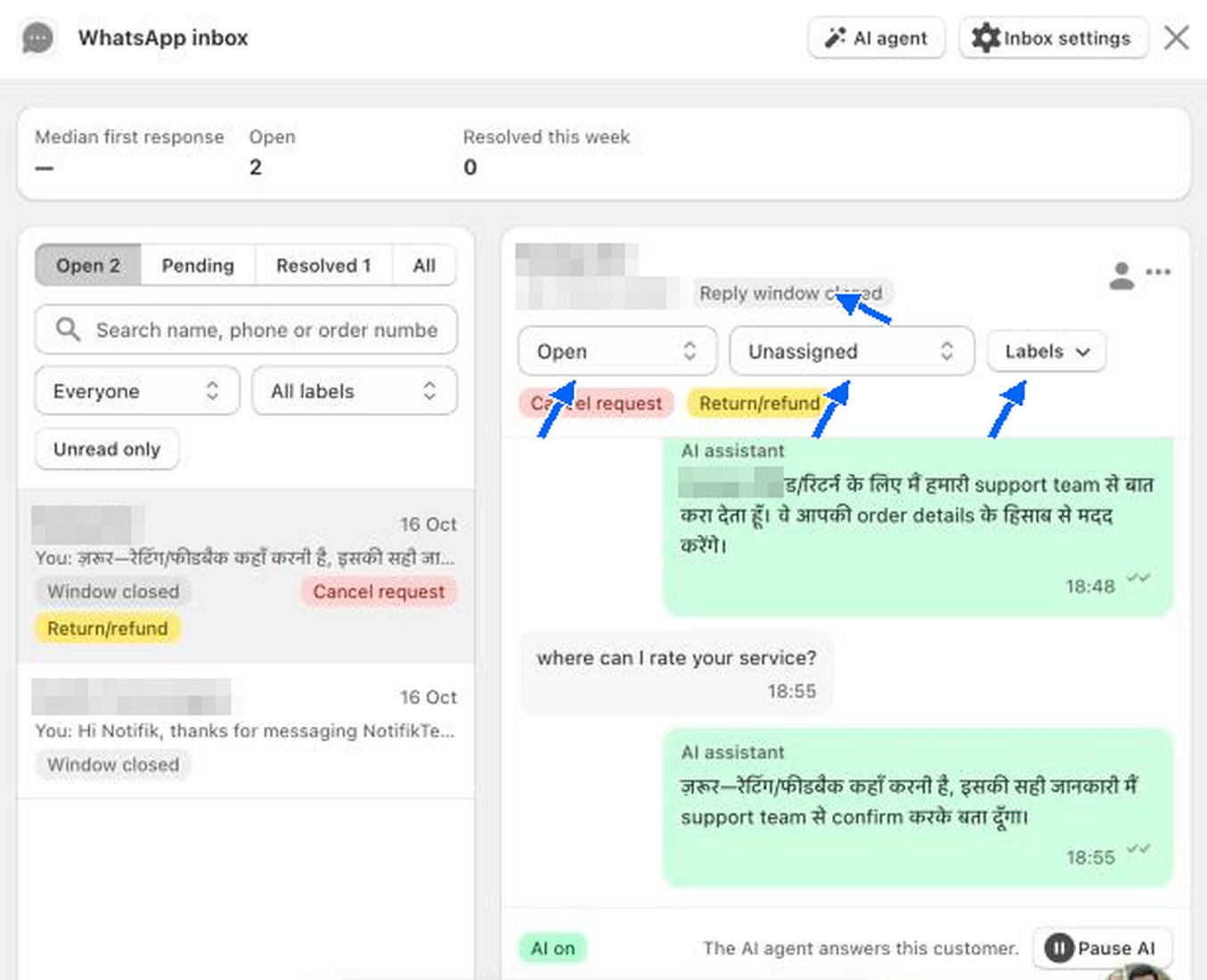
- Reply window badge. Shows whether you can still type a free reply. See The 24-hour reply window.
- Status. Shows where the conversation stands, for example Open. Change it as the conversation moves along, for example once the customer has what they need.
- Assignee. Shows Unassigned until you give the conversation to a teammate. An assigned teammate is the person emailed if the customer waits too long. See Unanswered conversation email.
- Labels. Tags that help you sort conversations. The AI agent and the inbox add some labels for you.
- Message thread. Customer messages are on the left. Your messages, and messages the AI wrote, are on the right. Messages the AI wrote are marked AI assistant.
Labels
Click Labels to tick the labels that apply to a conversation.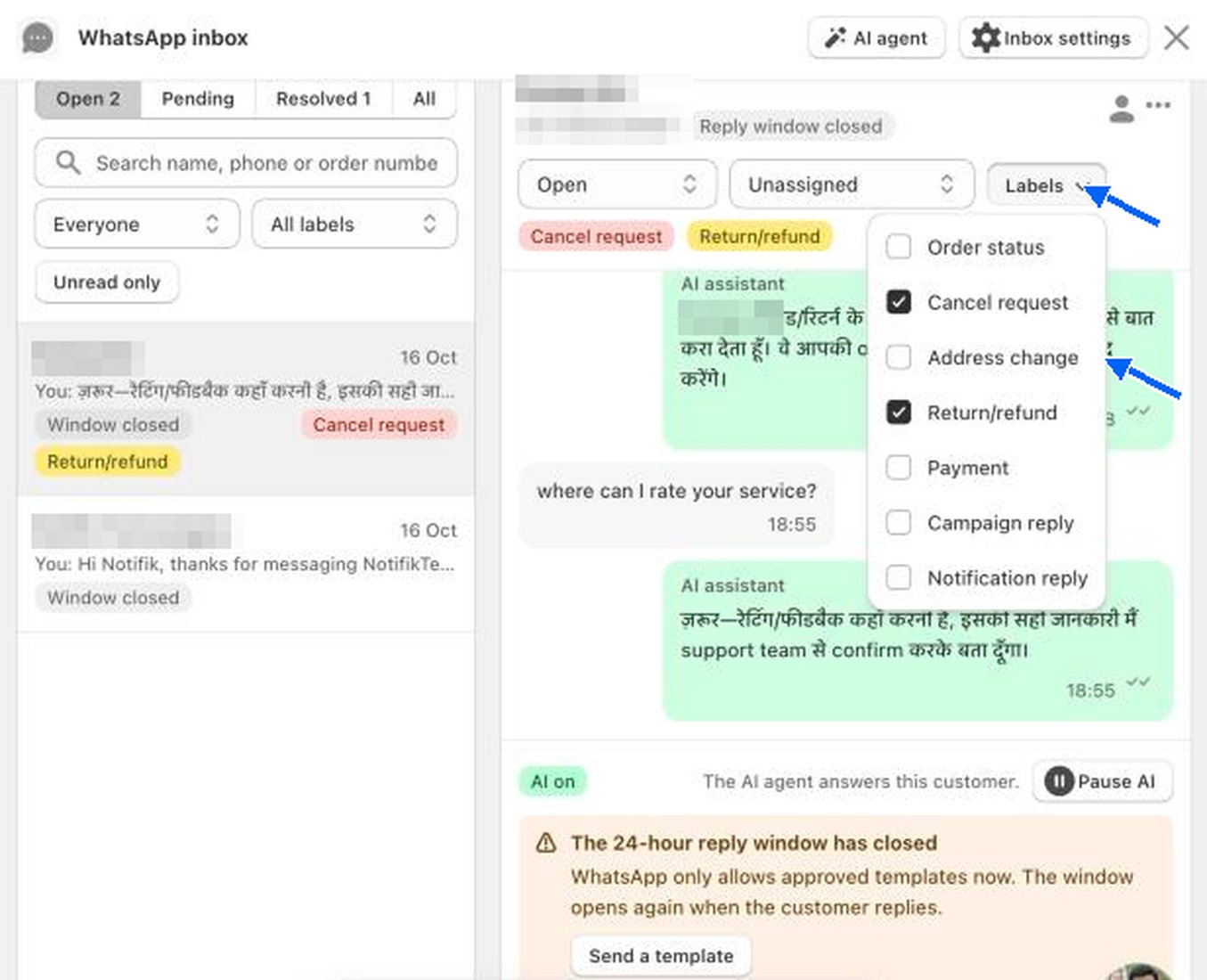
The 24-hour reply window
WhatsApp only lets you send a free-text reply for 24 hours after the customer’s last message. After that the window is closed and WhatsApp only allows approved templates. The window opens again as soon as the customer replies.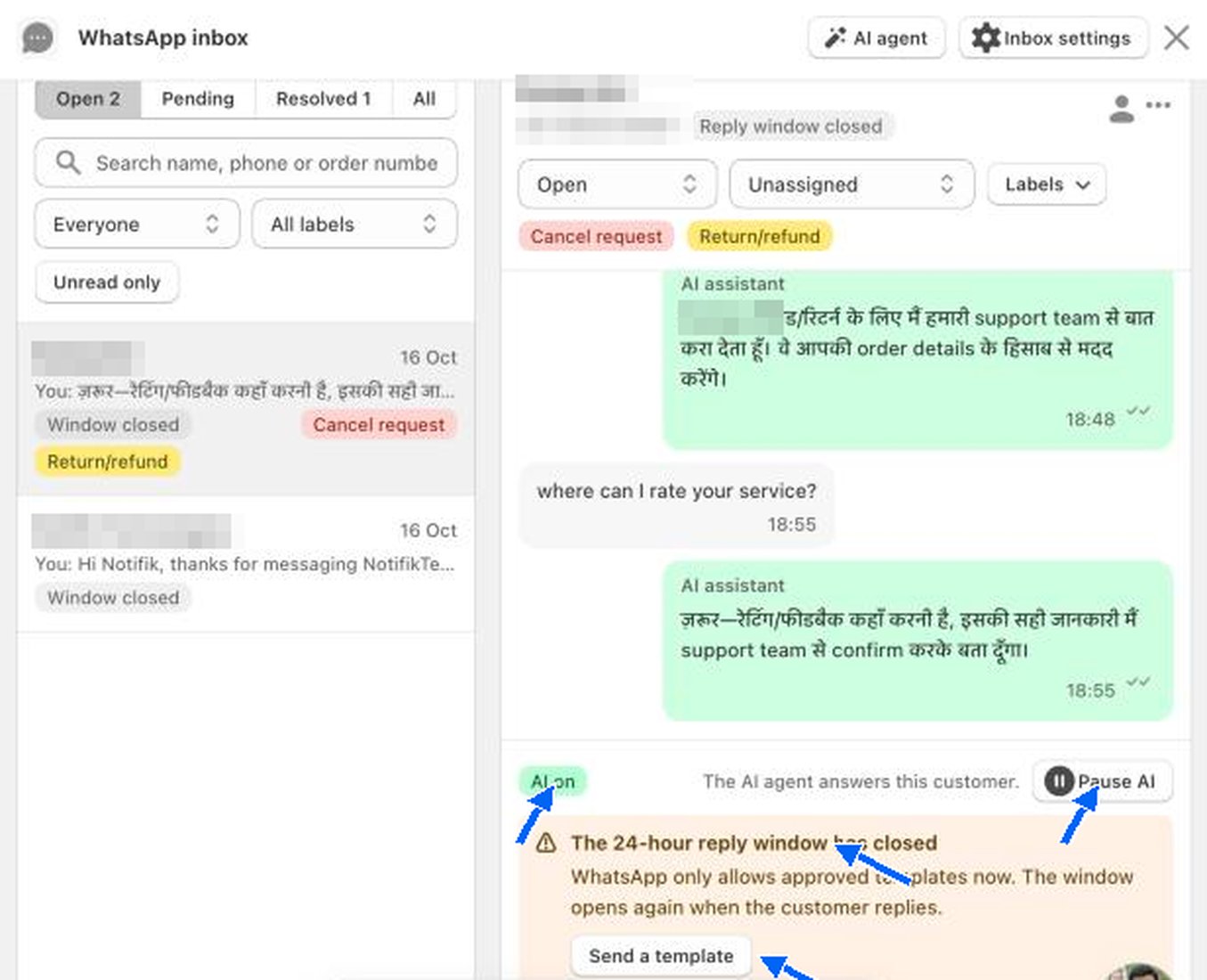
AI on and Pause AI
When the AI agent is switched on, each conversation shows AI on and the line “The AI agent answers this customer.” Click Pause AI if you want to answer this customer yourself. The AI stops replying in that conversation only, and chats you pause yourself stay with your team. Other customers are not affected.Inbox settings
Welcome and away messages, hours, keywords, saved replies and labels.
AI agent
Let AI answer order, COD and product questions for you.